

Repeating Groups
List or Searches - Which is faster in fetching data in Bubble?
Is it quicker to fetch data from lists or searches? It depends on a few factors, and no one approach will work in all scenarios.
Himanshu Sharma · ·4 min read

This tutorial will teach us how to send information from a repeating group to a popup.
A popup is commonly used to display detailed data about an item. In some cases, you might use the popup to let the user edit the data of a record.
By the end of this tutorial, you will have a system that allows you to see product information in a popup.
Typically, you will need to send only a single data type to the popup. It can be a record of any data type stored in your Bubble app.
Setting up the repeating group
We have a repeating group that displays a list of Products. The content type and the repeating group’s data source are straightforward.
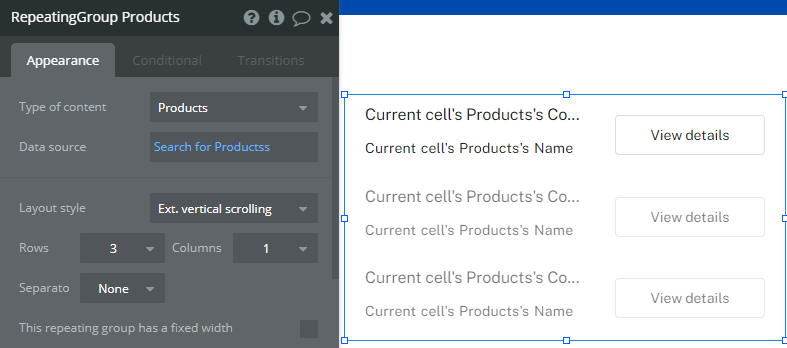
Repeating group to display a list of Products
We would like it if we could show more information about this Product when the user clicks on the “View details” button.
Setting up the popup
The popup will need to have a content type. The information that we want to send will determine the type of content. In our case, it will be Product.
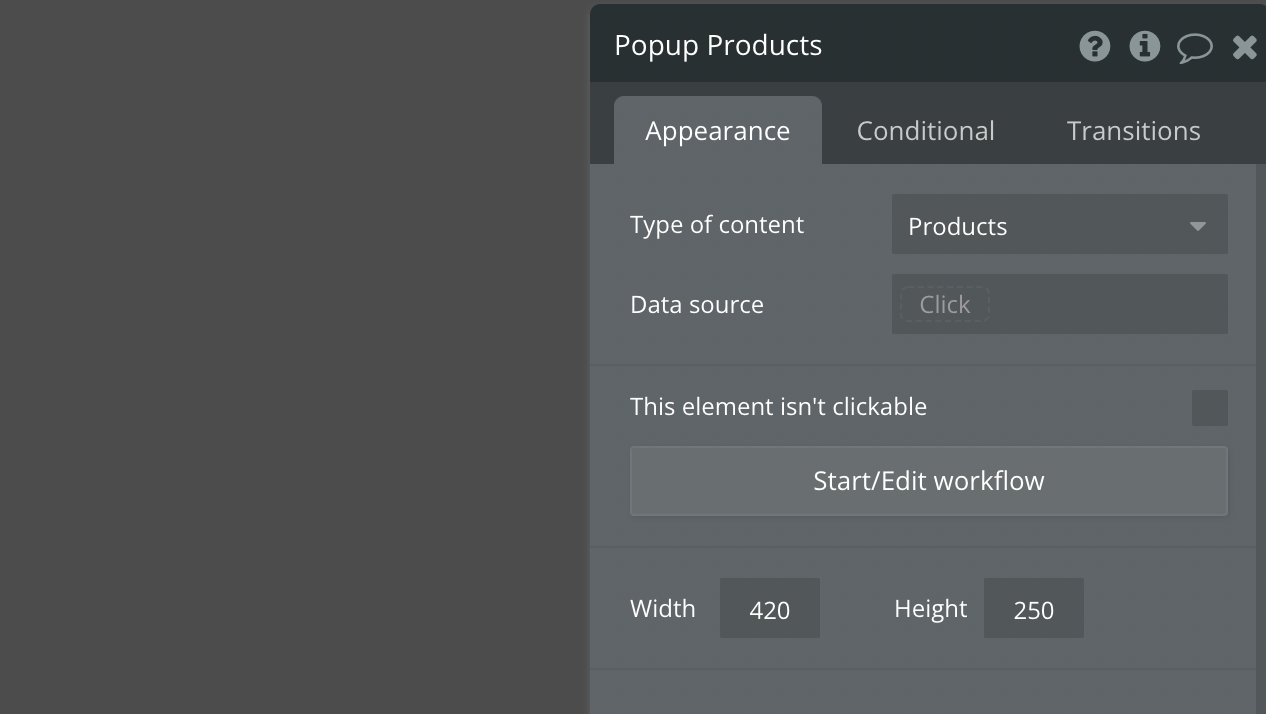
Only define the type of content of the popup. Leave the data source empty.
We’ll pass the data source using workflows, so the data source will be empty.
Bookmark
5 common mistakes to avoid when building with Bubble
Are you building with Bubble.io? Avoid these 5 common mistakes when building your Bubble.io app.
Workflows
If you want to send dynamic data to a popup, you should not define the data source of the popup. How will Bubble know which record to display if that’s the case?
We will tell Bubble the record to display using a workflow action - Display data.
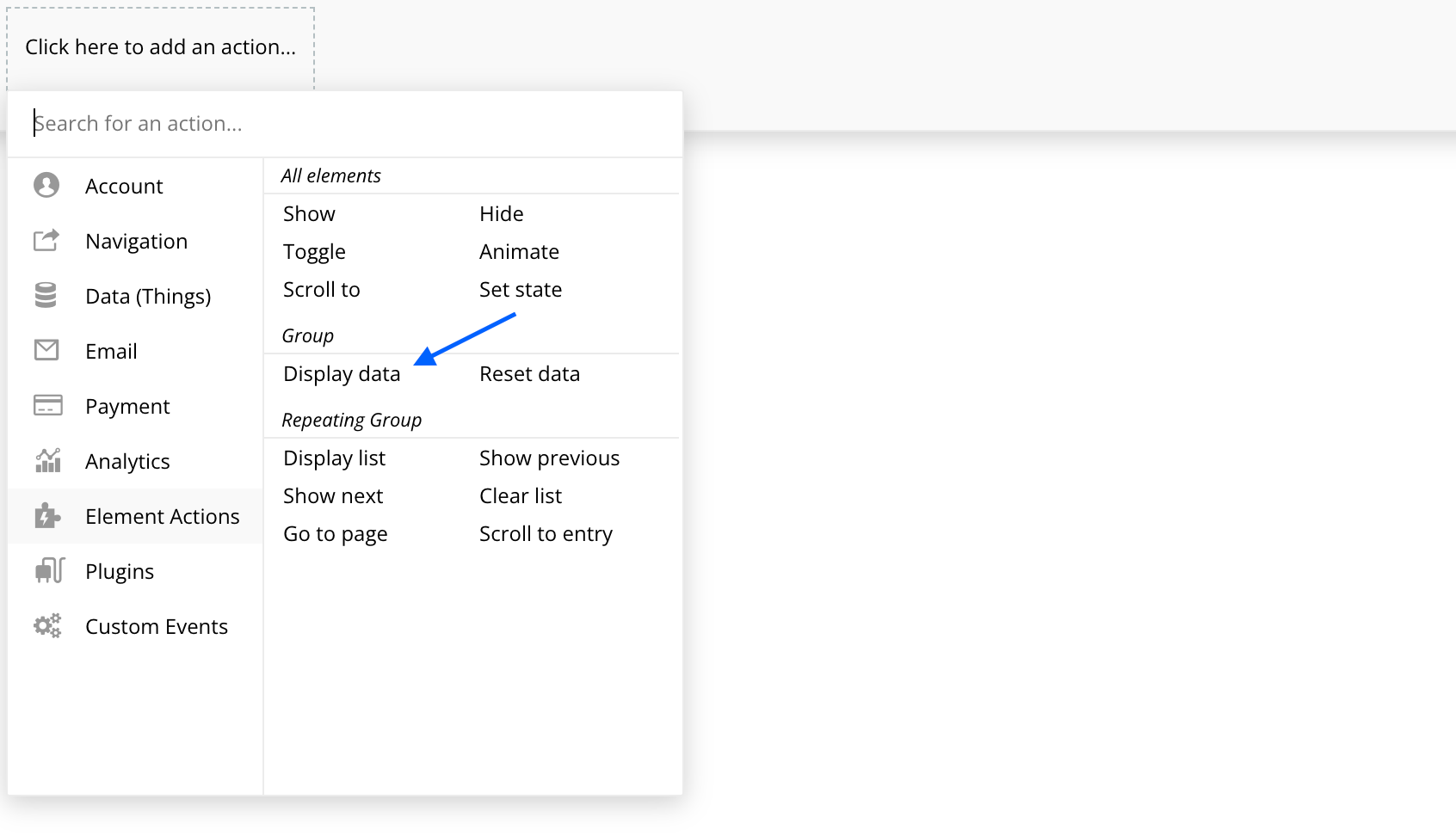
Element actions - Display data
The ‘Display data’ action allows you to pass dynamic or static data to a group/popup.
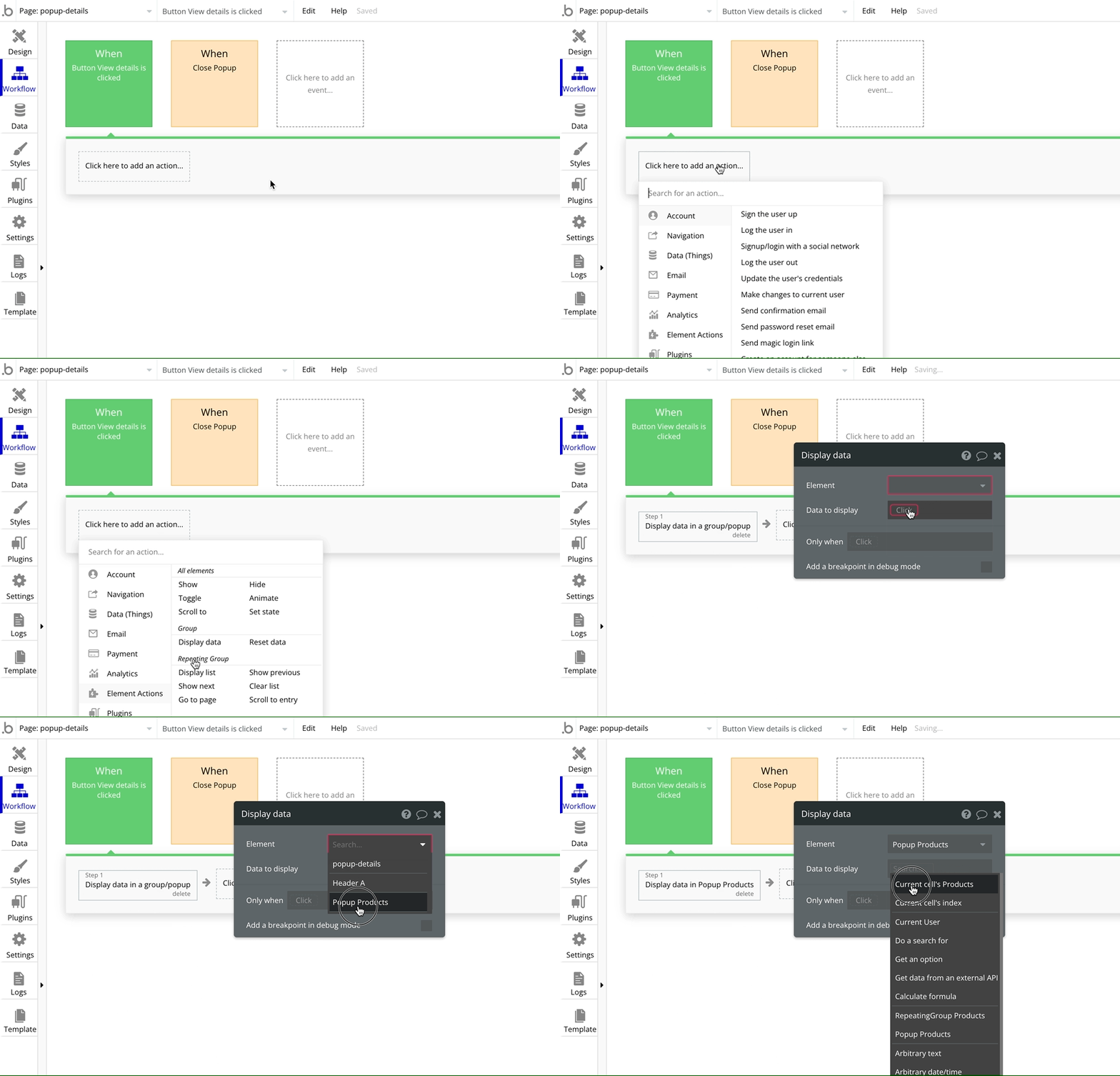
We want a popup to open when we click a button. We’ll pass the current cell’s information to the popup.
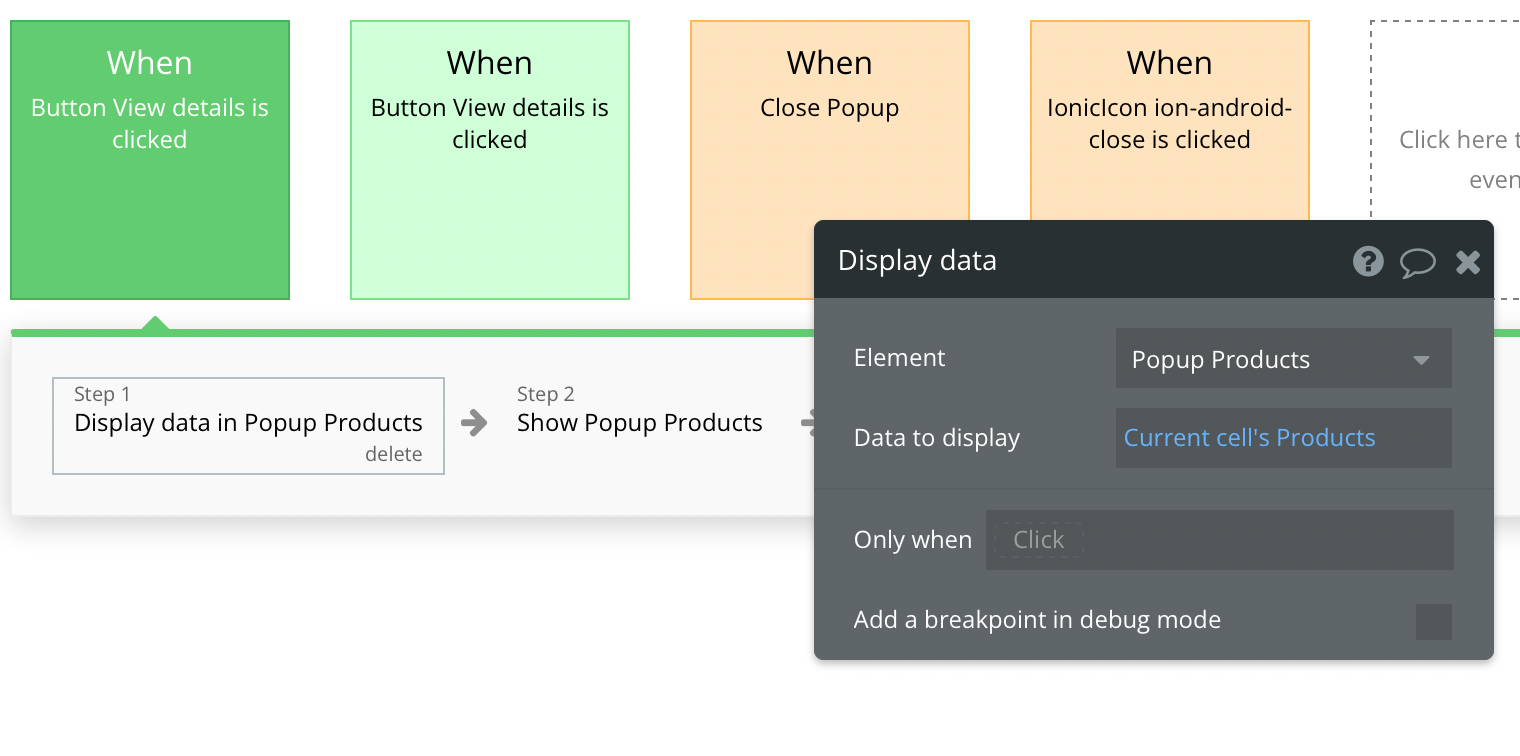
We need a ‘Show popup action’ as step 2.
We can create text fields inside the popup to show the received information.
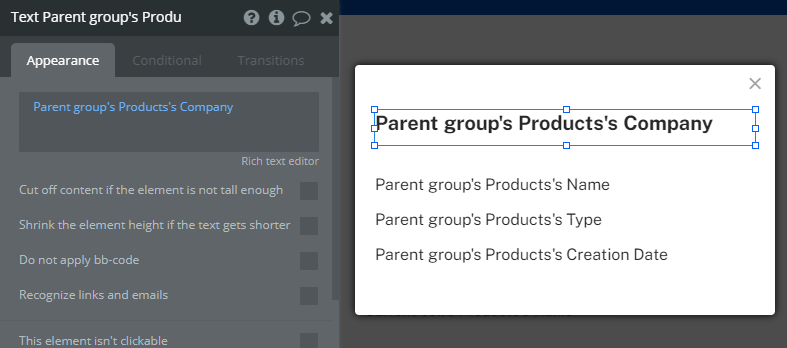
The Parent group’s dynamic data can be used in the text, input, and other popup fields.
When creating a group inside the popup, define the type of content and data source. If this doesn’t happen, dynamic information won’t be passed down to child elements.
The type of content in the repeating group and popup can be different. Please look at your use case and choose the appropriate type of content.
Sometimes, you may need to send more than one data type to a popup. It can be a record of any data type stored in your Bubble app.
Setting up the repeating group
We have a repeating group that displays a list of Products. The content type and the repeating group’s data source are straightforward.
Repeating group to display a list of Products
We would like it if we could show more information about this Product and the Company when a user clicks on the “View details” button. The Product table is not storing the Company record but we can pass this information dynamically.
Bookmark
Display a list in a Repeating Group
A repeating group can be used to display a list of items. This simple Bubble tutorial will guide you through the steps of creating a repeating group and displaying a list.
Setting up the popup
The popup will need to have a content type. The information that we want to send will determine the type of content. In our case, it will be Product.
We’ll pass the data source using workflows, so the data source will be empty.
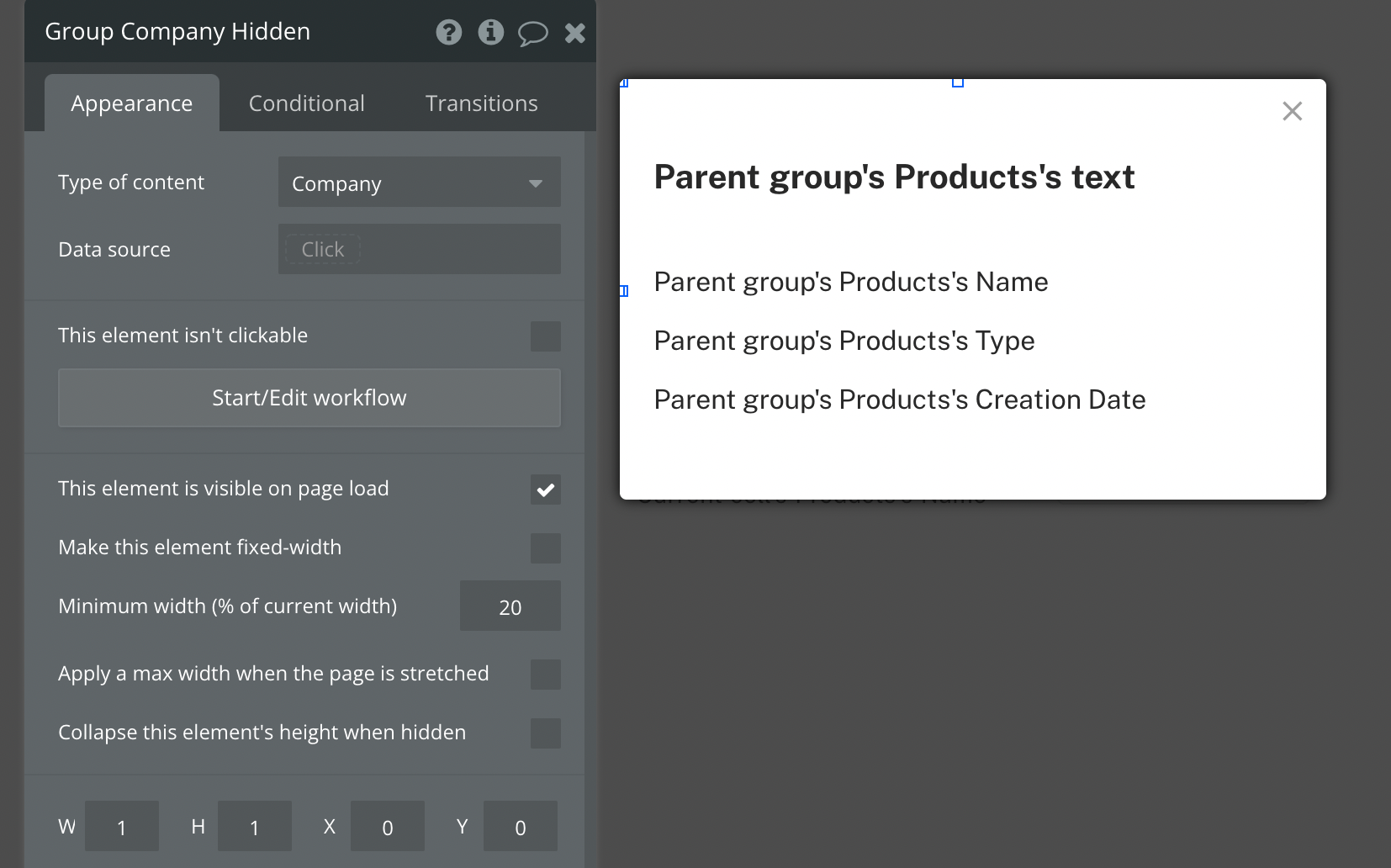
We will send the Company record via workflows as well. However, we need a group to hold information on the Company record. We can then refer to this group wherever we need it.
For simplicity, we can create a hidden or dummy group to hold this information. I’ve created a group called Group Company Hidden in the popup and given it a type of content.
You don’t need to create a group in the popup. You can create wherever you feel comfortable.
Workflows
We’ll use the same workflow and action as before - Display data.
This time, however, we will use it twice because we need to send data to two groups - the popup and the hidden group.
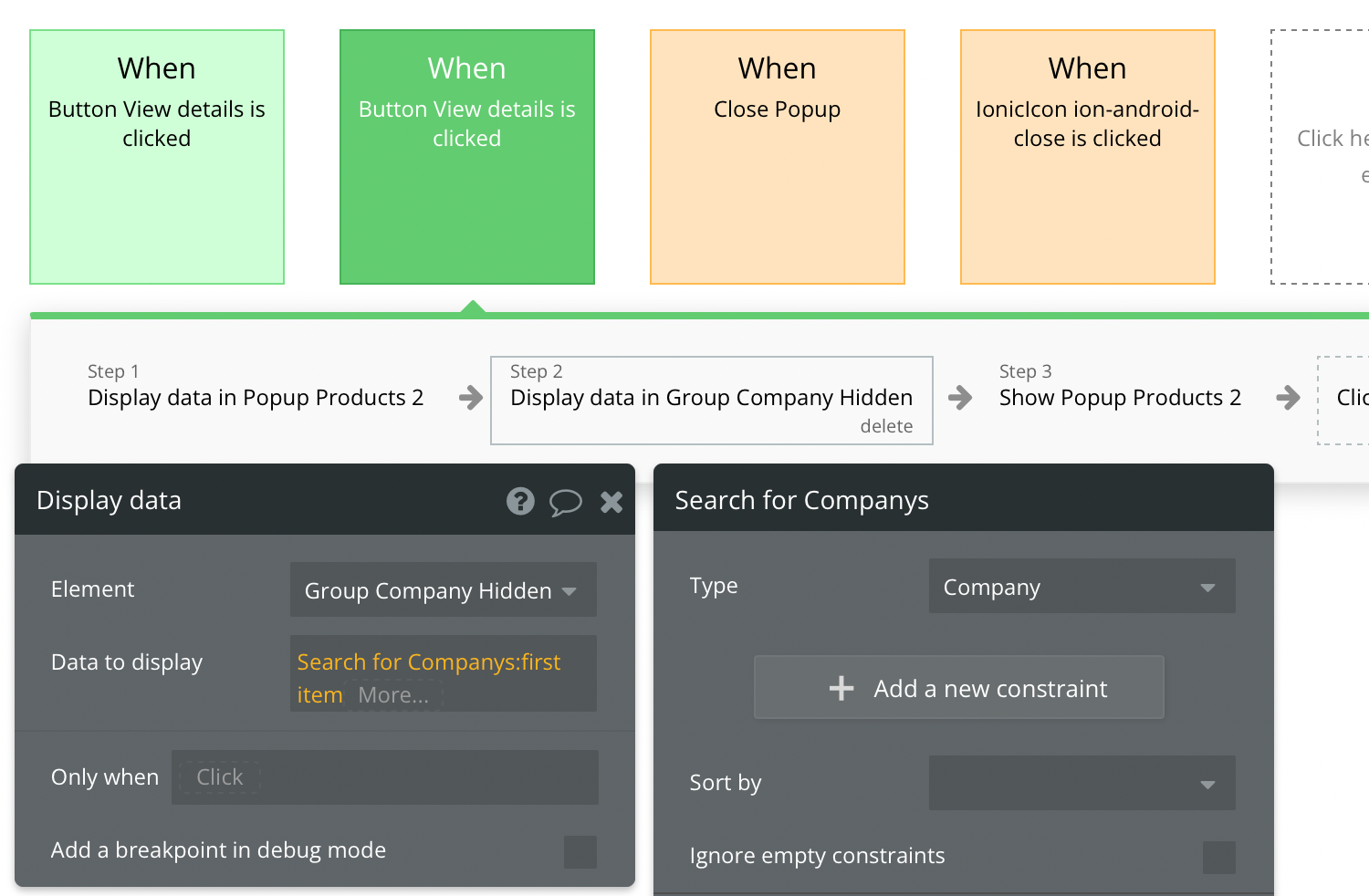
We can search for the relevant company record and pass its information to the hidden group. I’ve not applied any constraints to the search, but you’ll need to put the relevant constraints here.
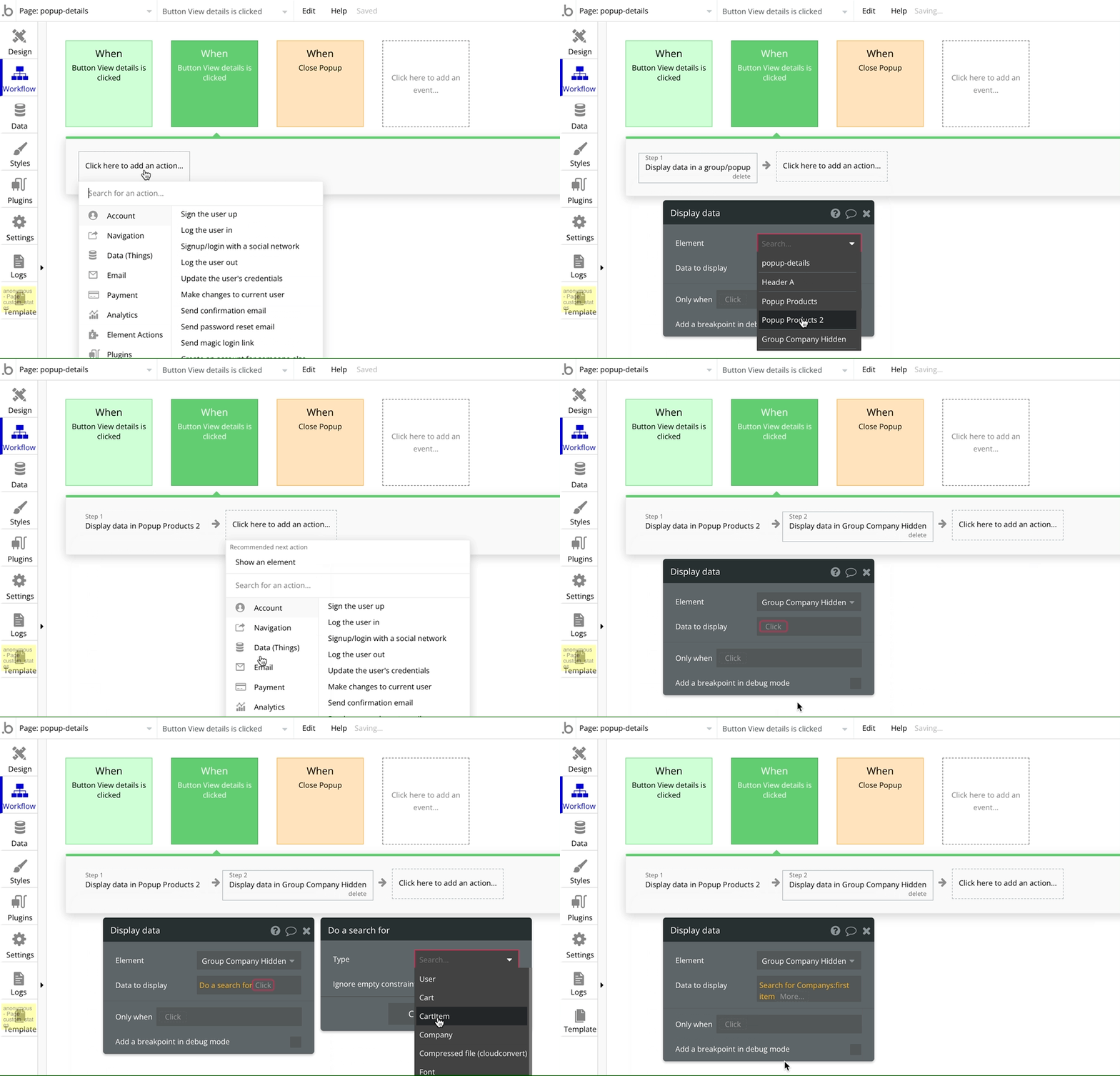
The ‘Show popup’ action will be step 3.
We can create text fields inside the popup to show the received information. We can access the Company record by referring to Group Company Hidden.
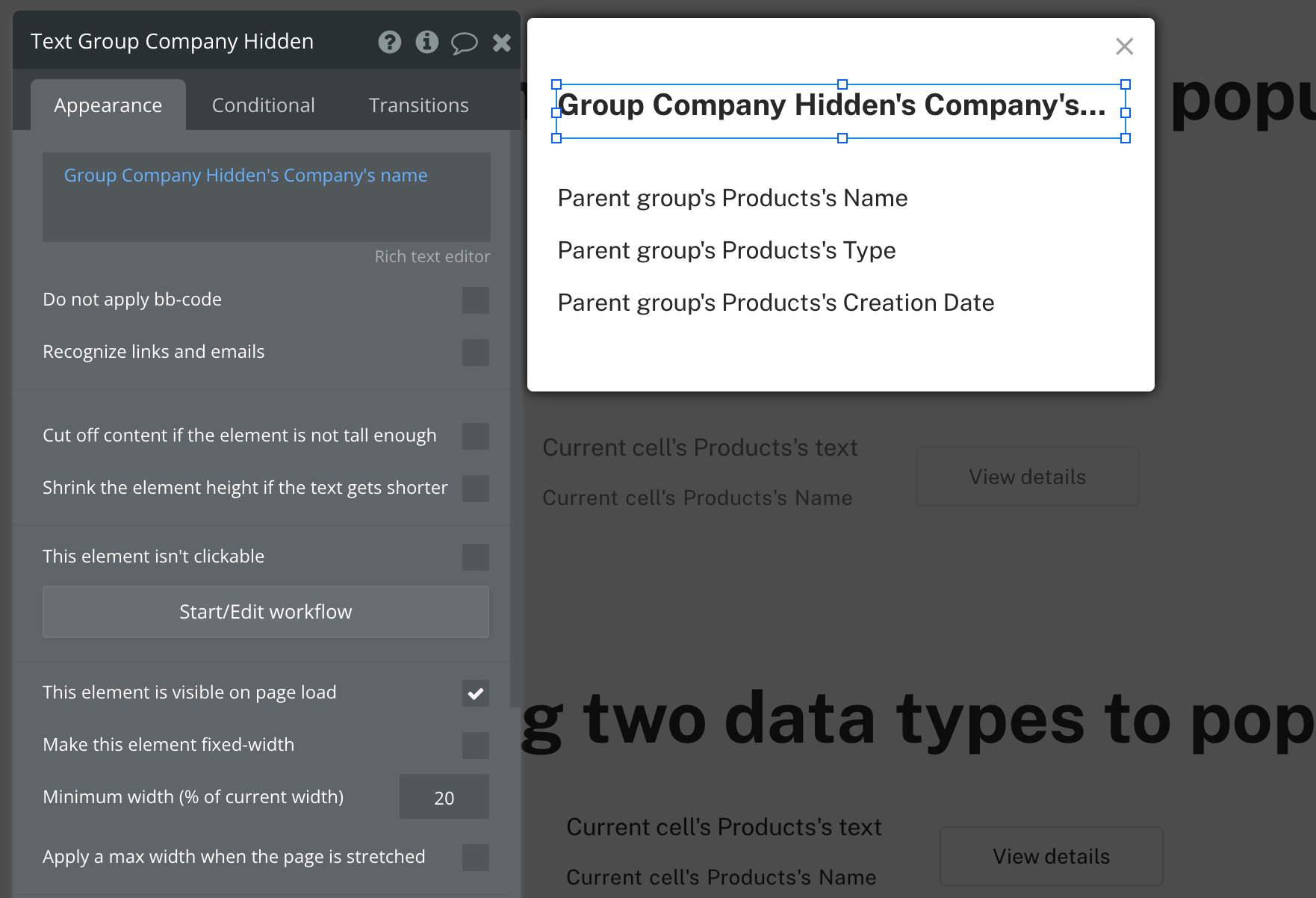
Access information of dummy group
Bookmark
Beginner’s guide to sorting in a Repeating Group in Bubble.io
In this Bubble.io tutorial, we’ll learn how to sort the results in your repeating group. You can sort items in ascending order or descending order.
Preview - Open live preview
Editor - Open Bubble editor
If you need some help with your Bubble app or a team of Bubble developers to build a Bubble app for you, reach out to me at himanshu@nocodeassistant.com. You can also follow me on Twitter.
Continue reading
Is it quicker to fetch data from lists or searches? It depends on a few factors, and no one approach will work in all scenarios.
In this Bubble.io tutorial, we'll learn to sort the results in a repeating group. You can sort items in ascending order or descending order.
You can remove the scroll-bar from your Repeating groups to create a cleaner design

