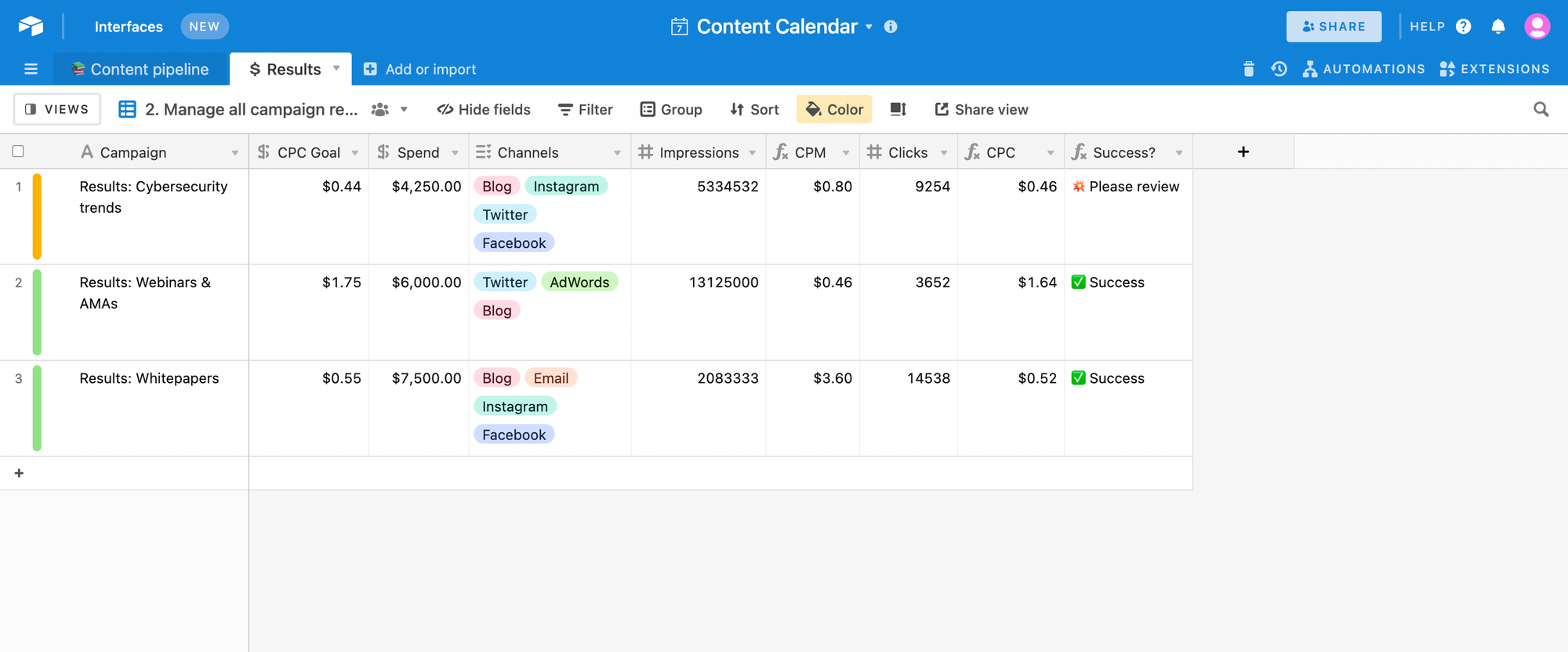
Airtable is a spreadsheet that has database capabilities. In other words, it combines a spreadsheet and a database. Airtable is unique from traditional databases and spreadsheets because of its pre-made templates, integrations, forms and automation.
This tutorial covers the steps to connect Airtable and perform operations on your Airtable data with Bubble.
An Airtable base
Getting the Airtable API key
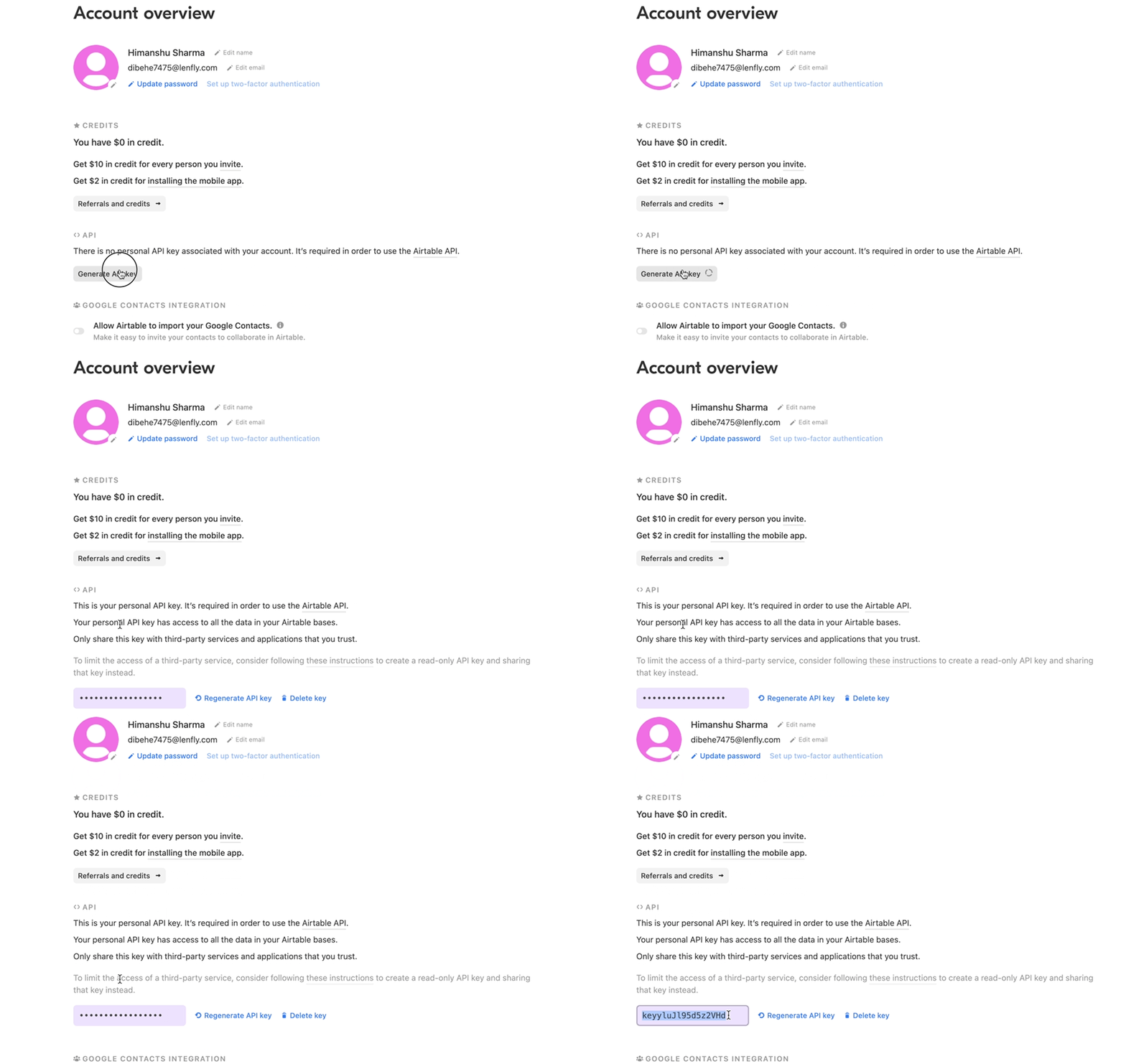
Every Airtable user has a unique API key that they need to connect Airtable with their Bubble app. You can find the key can be found under the account settings.
Getting the Airtable API key
All users can access the API key; you don’t need to be on a paid Airtable plan.
Installing the Airtable plugin
We must install the Airtable plugin in our Bubble app to connect and sync our Airtable account.
Head over to the plugins sections and install the free plugin created by the Bubble team.
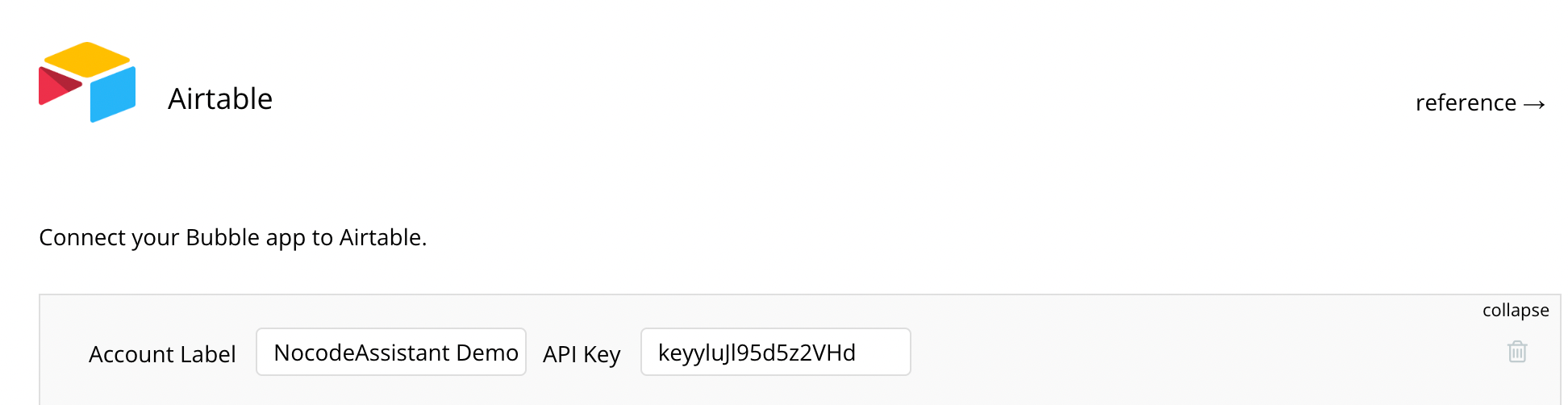
Once installed, Bubble will ask you to give a label to your connection. This label is only for your reference, so choose whatever you like. Then click on expand and paste the API key.
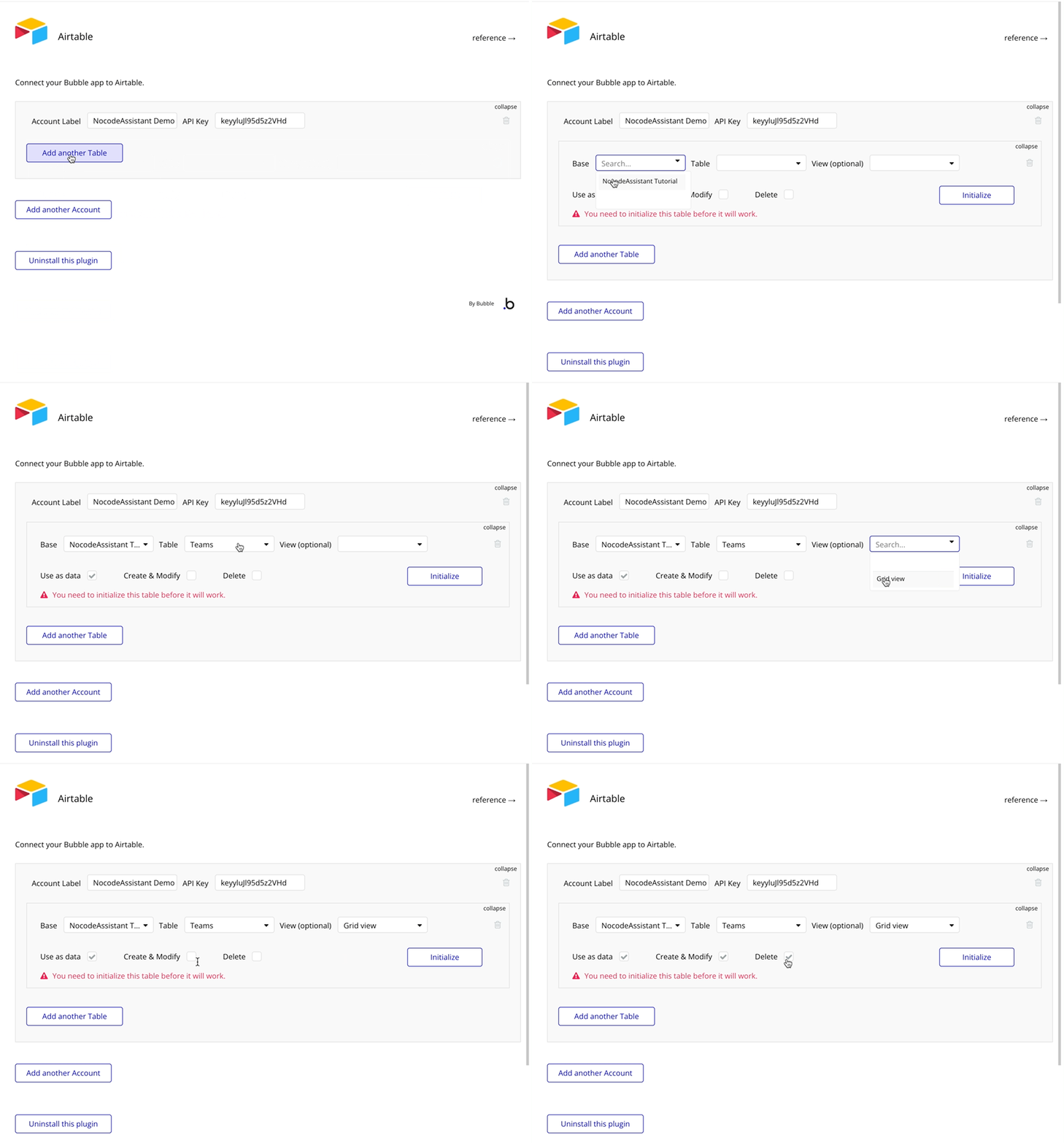
We now need to connect our Airtable base to our Bubble app. Choose the Base, Table and View that you want to connect. You can choose which actions you want to perform to your Airtable base.
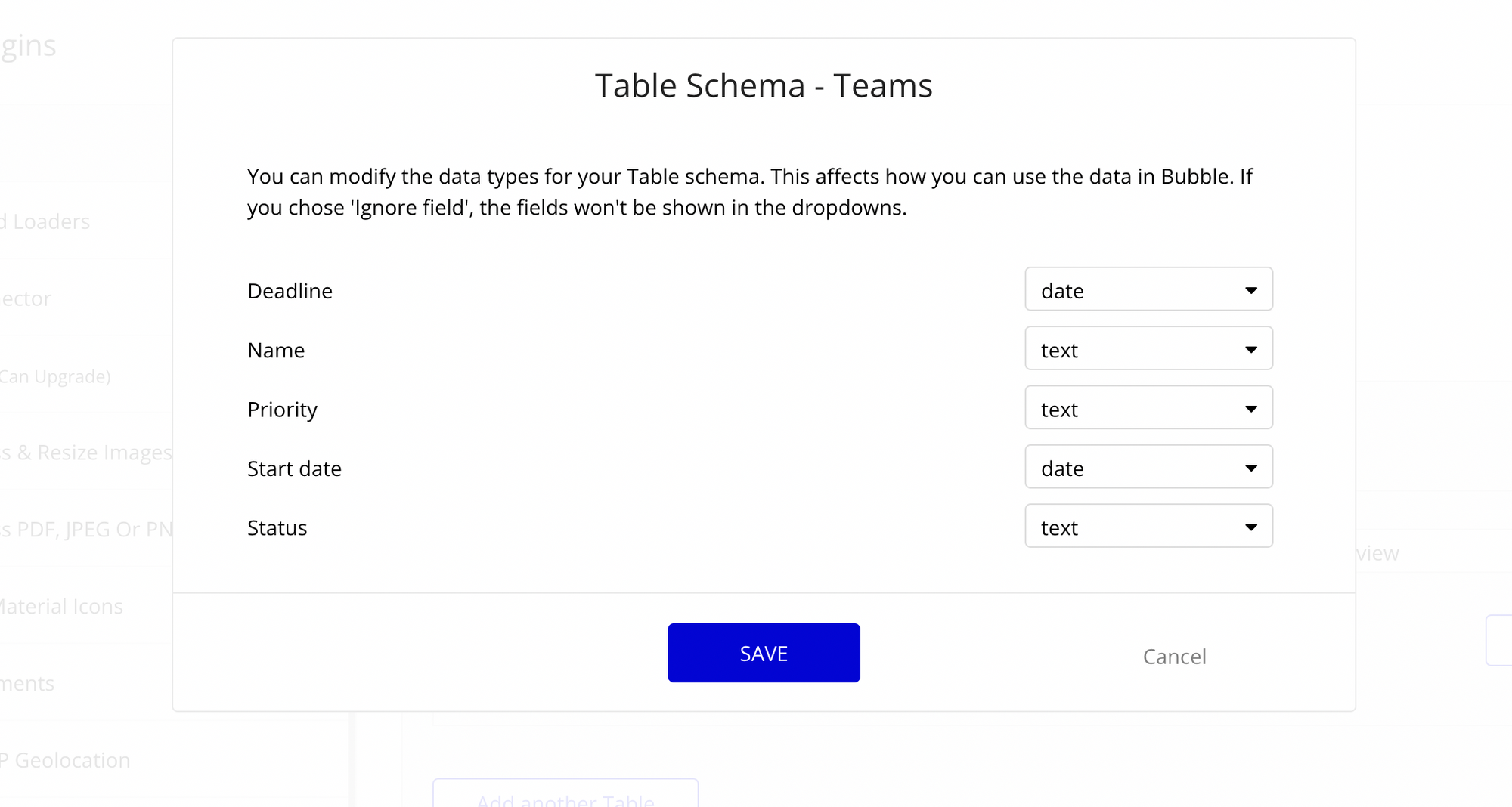
Hit Initialise. Bubble will make an API call to your base and show you a schema of the response. Make any adjustments, if necessary, to your data.
These settings affect how you can manipulate your Airtable data in the Bubble app. If you choose to ‘Ignore field’, Bubble will not fetch this field, and you won’t access this field in your app.
Click Save.
Reading the Airtable base in Bubble
Let’s say you want to display the data in a repeating group.
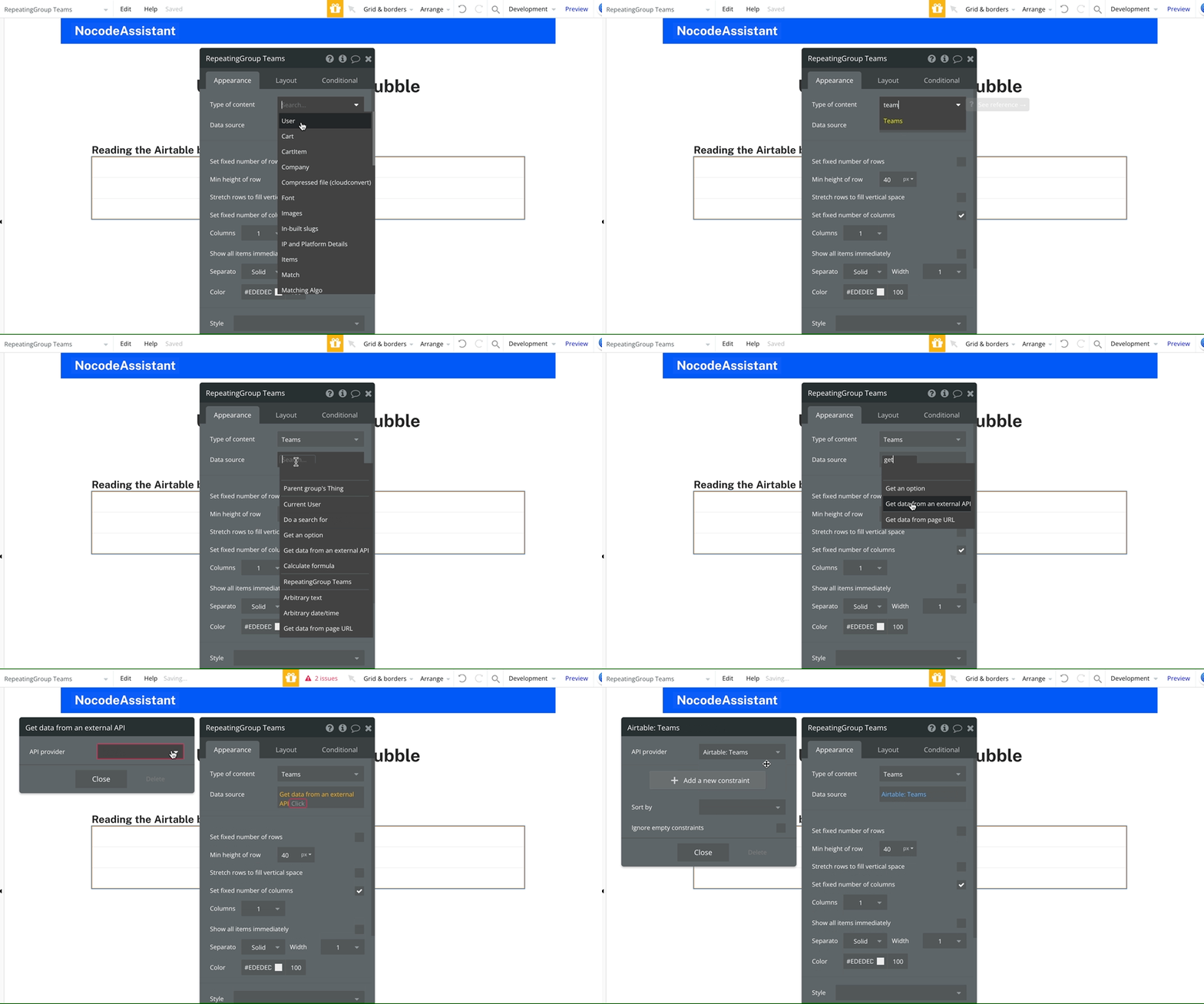
The Type of Content of the Repeating group will be the name of the Airtable base. In the current case, the Type of Content will be ‘Teams’ as this is the name of the base.
Getting Airtable data in Bubble repeating group
As we use an API (the plugin makes API calls) to connect Airtable and Bubble, the Data source will be an external API.
Now you can use the repeating group the way you usually do.
Creating a record in Airtable using Bubble
Adding a new record to your Airtable base is like creating a record in your Bubble app database.
You need a workflow and an action where you’ll pass the input values.
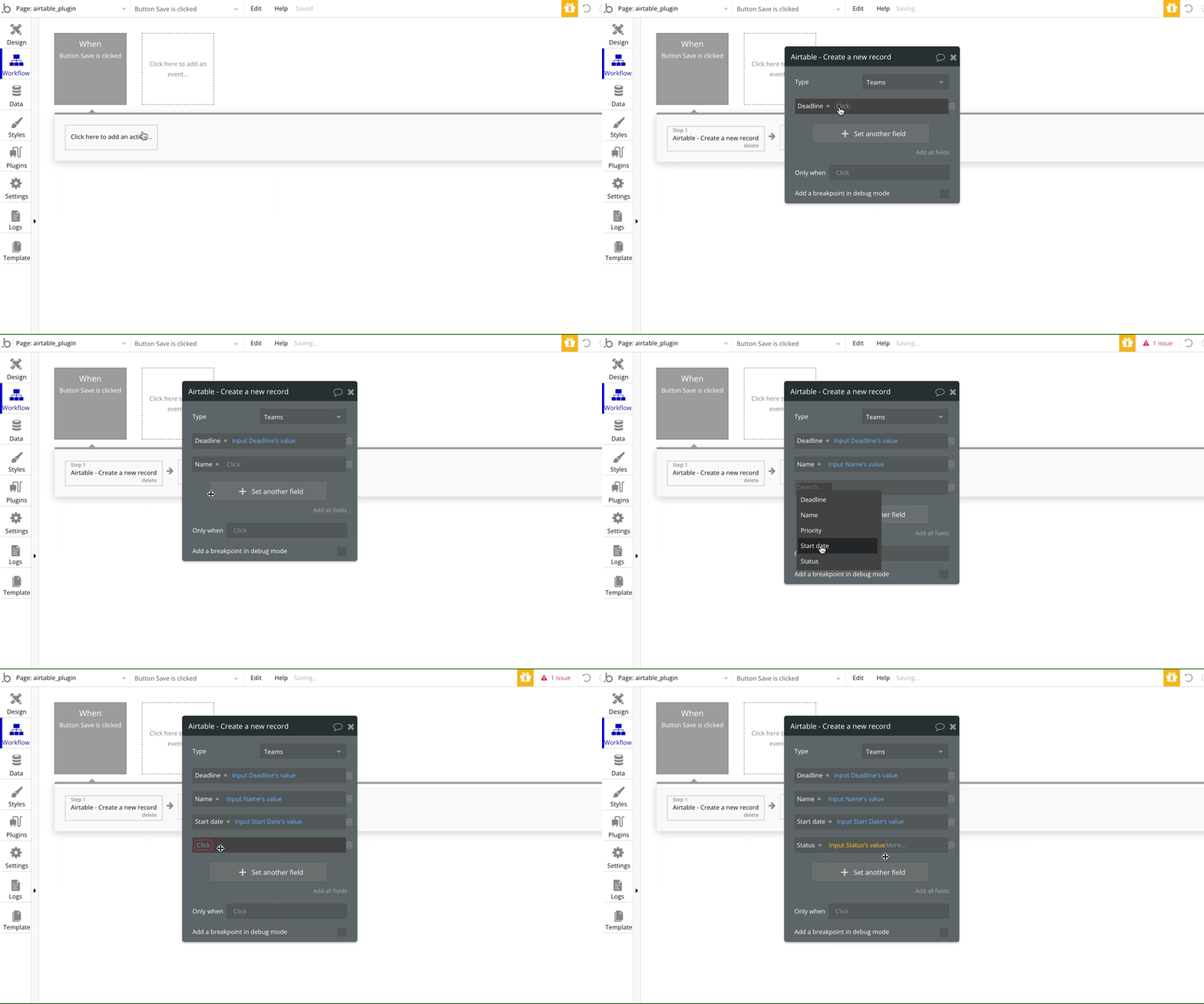
The only difference is that you will not use the “Create a new thing” action. Instead, you’ll use the “Airtable - Create a new record” action.
I have created 2 input fields and 2 date pickers in the Bubble app and a button to trigger the workflow.
Creating a new record in Airtable
Bubble will send the date and time values in a format Airtable can understand, so you don’t have to worry about formatting the date.
Modify a record in Airtable using Bubble
Modifying a record has a few steps.
We will create a popup and input fields to display the current value of the record.
We’ll pass the relevant Airtable record to the popup.
We will create a workflow to modify the selected record.
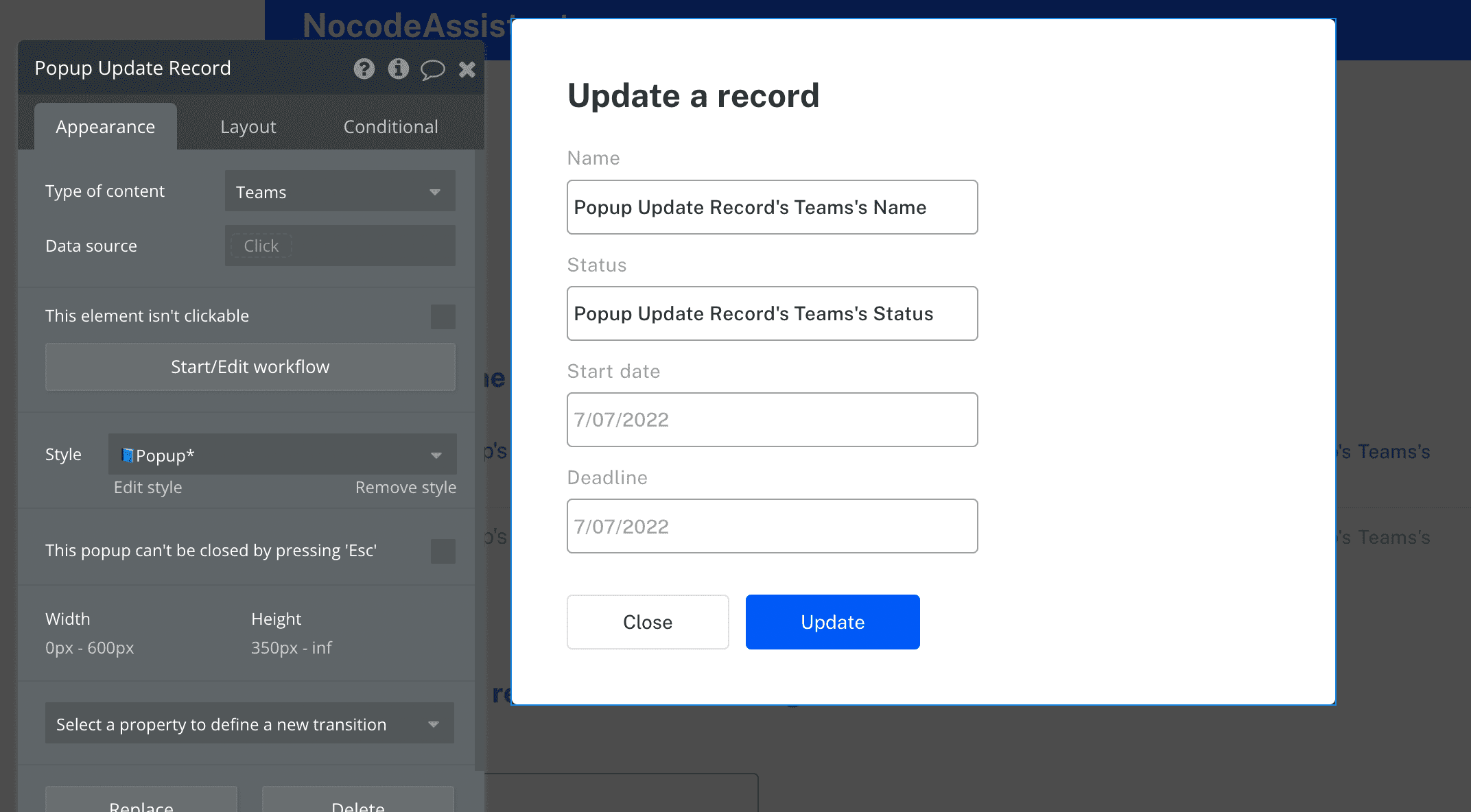
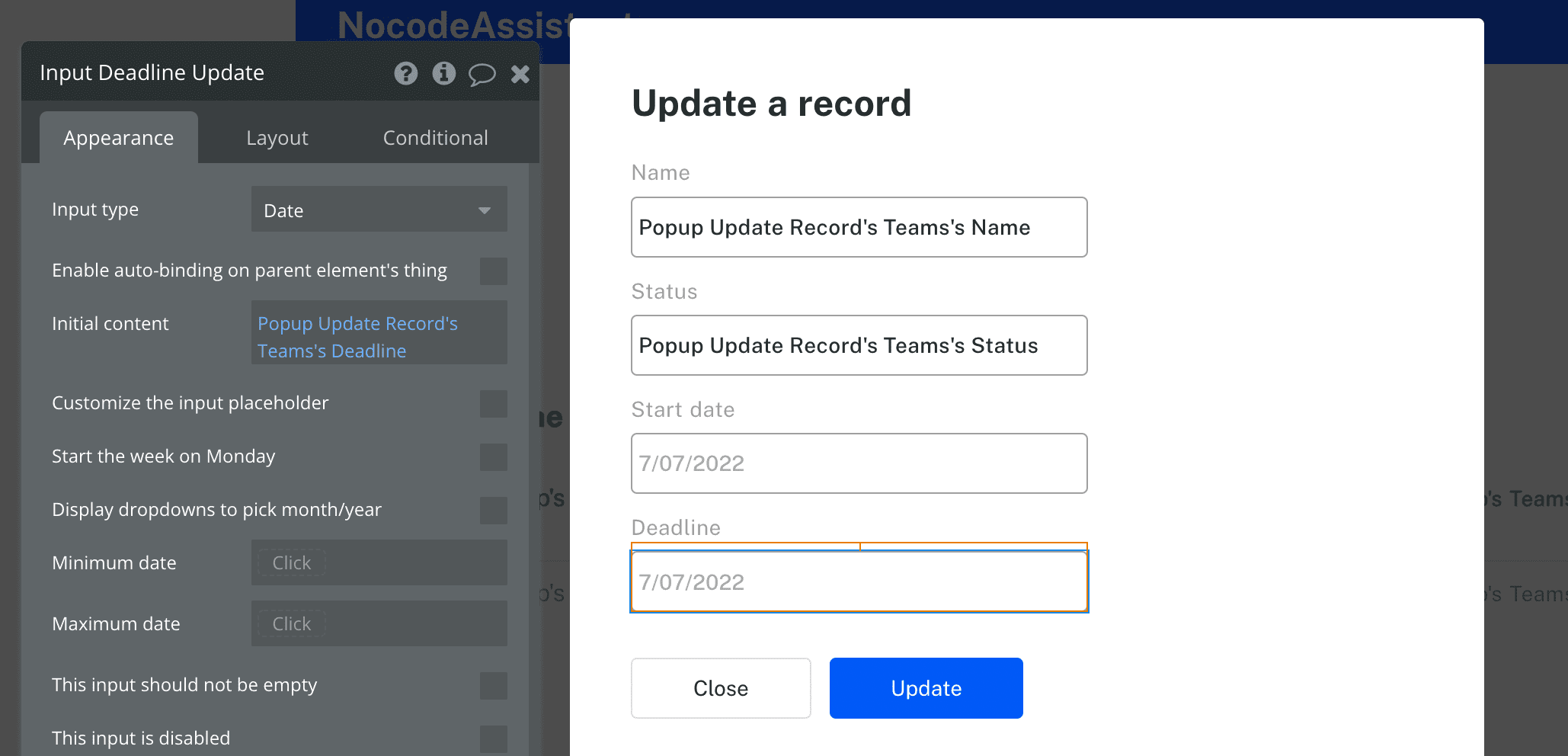
I’ve created a simple popup and added the input fields and date pickers.
To pass and work on a specific Airtable record, we will give a Type of content to our popup. We can then dynamically pass the Airtable record using workflows.
Type of content of the popup
To display the current record data like the Name and Status of the record, we can define the Initial content of the input fields. The initial content is the initial value of any input field.
Define the Initial content for all input fields
Once we finish the first step, let’s move on to the next step.
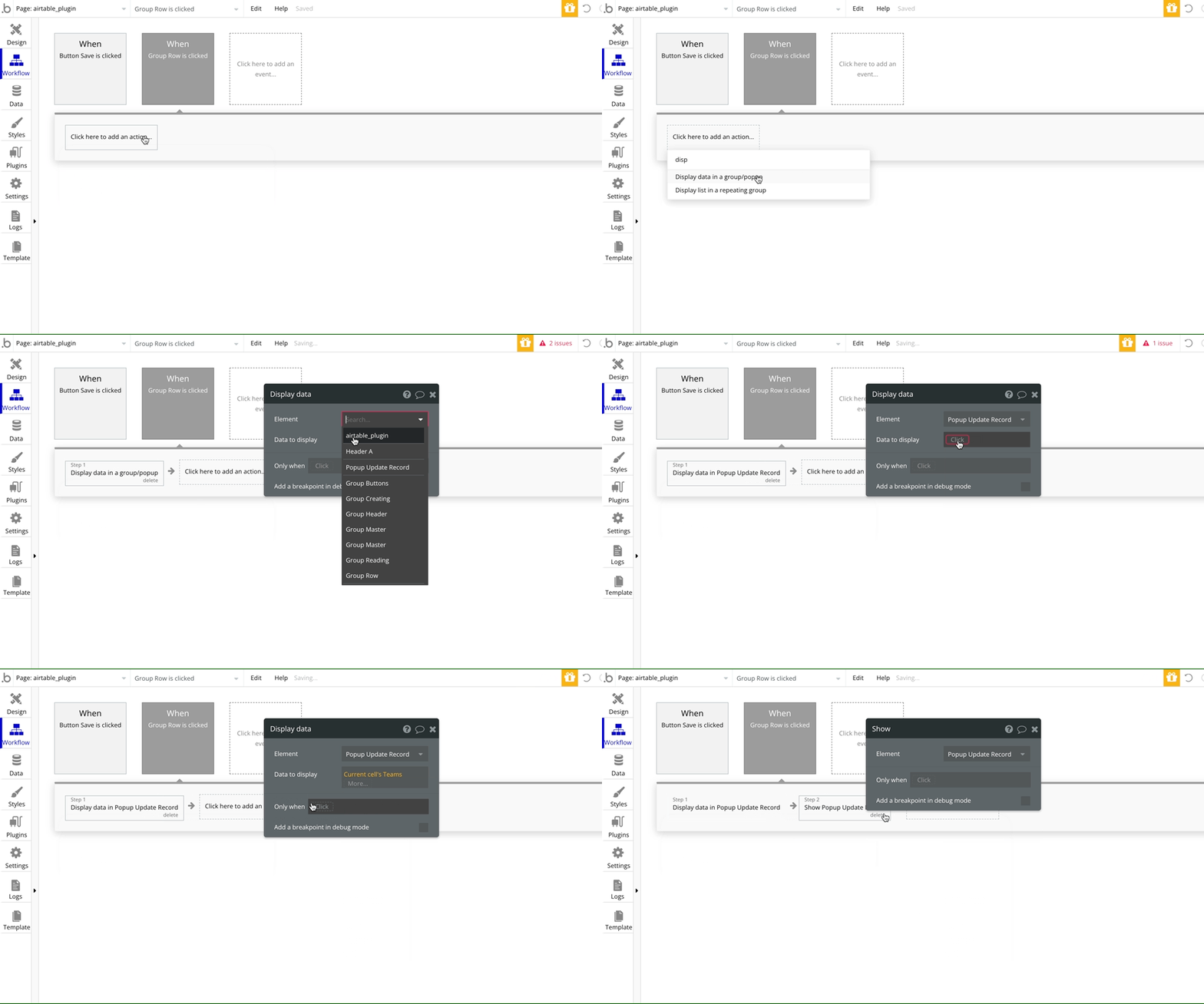
We will create a workflow where the user clicks on any cell of the repeating group, showing the popup and passing the current cell’s Team to the popup.
Once we have the setup to show a popup, pass the current cell’s Team and display the current information as initial content, we can move on to the final step.
Modifying the record.
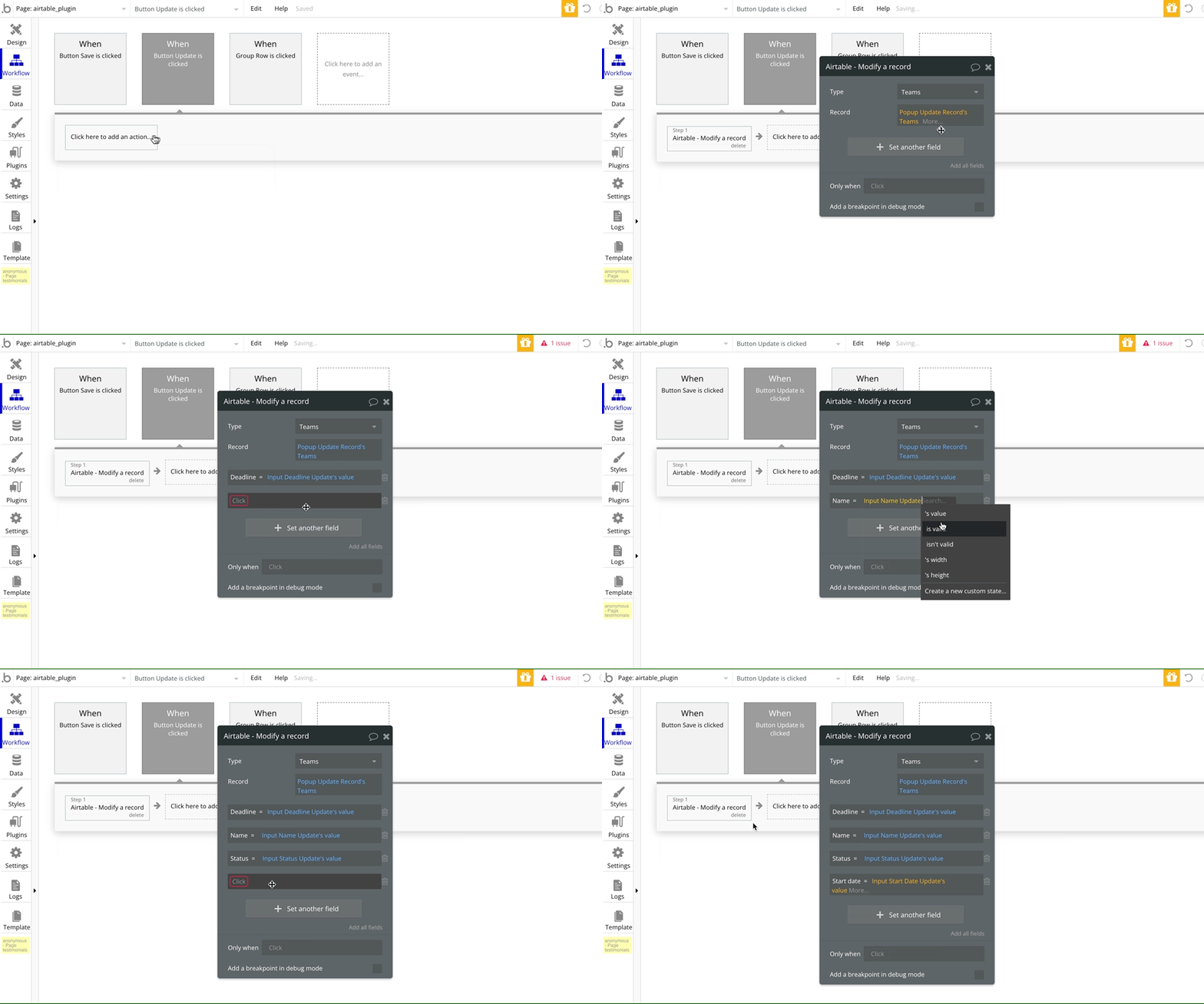
We will trigger a workflow when the button ‘Update’ is clicked.
The ‘Airtable - Modify a record’ action will allow us to pass the updated values and the appropriate record id.
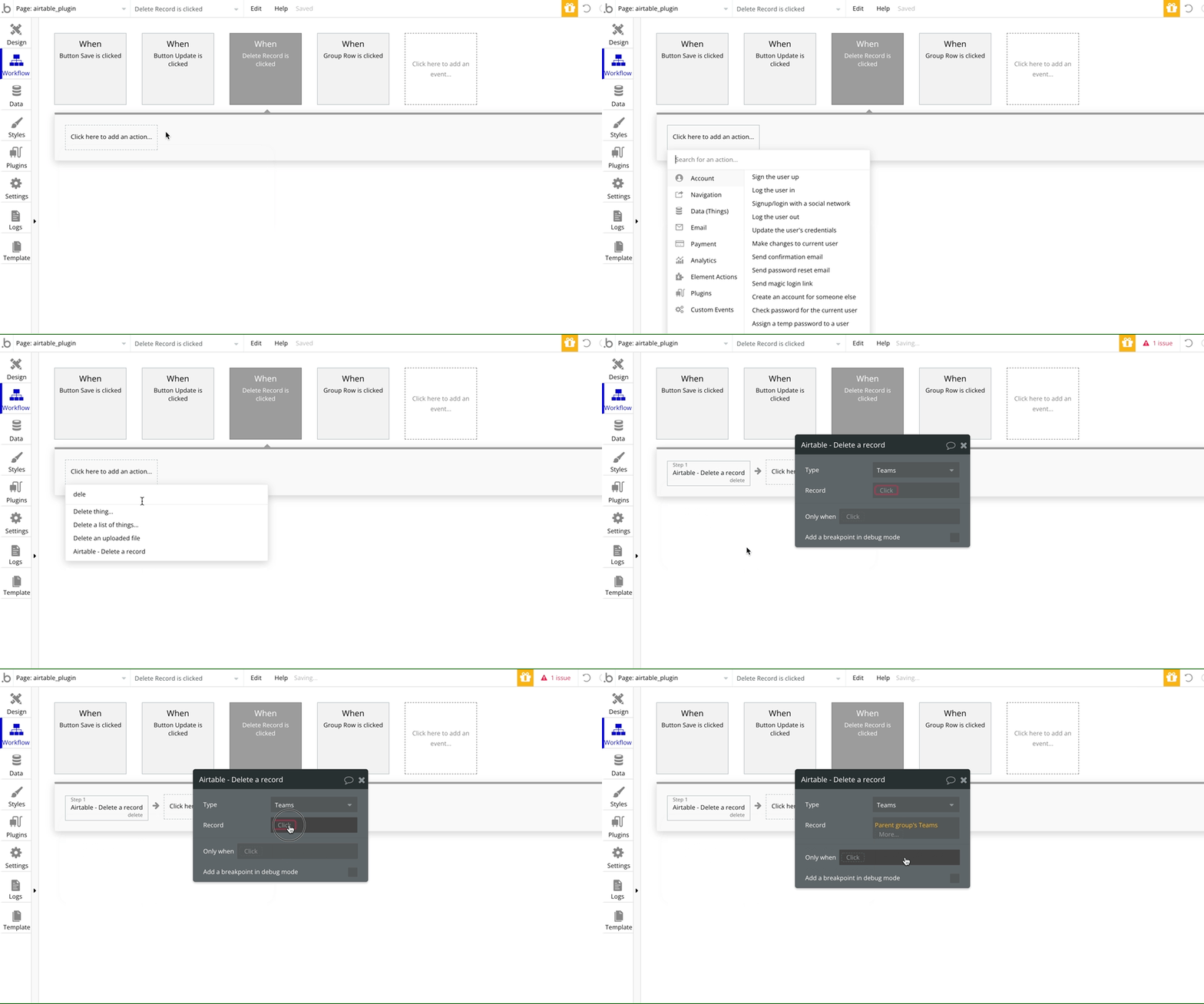
Deleting a record is a one-step workflow. I’ve created an icon in the repeating group that will trigger the workflow when clicked.
We need to add an action ‘Airtable - Delete a record’. We will need to pass the Team record that has to be deleted, which in this case will be the Current cell’s Team or the Parent group’s Team.
Deleting a record in Airtable
Why can’t we filter on all of our fields?
You can filter data to the extent that Airtable allows.
Why can’t we create or modify all of the fields?
Some fields in Airtable have been generated automatically, such as Rollups and Counts. These values are not alterable or creatable via API calls.
What type of values can we send to Airtable?
Currently, we can only send text and number values to Airtable.
How can we modify linked records?
For linked records, you need to get them from Airtable. To create a new record with a collaborator field, you must have that collaborator on another record. Then use that collaborator field.
What are some of the ways you use Airtable with Bubble? How have they worked for you?
If you enjoyed this article, share it with your friends and colleagues!
If you need some help with your Bubble app or a team of Bubble developers to build a Bubble app for you, reach out to me at himanshu@nocodeassistant.com. You can also follow me on Twitter.
Learn how to effectively use Boolean fields in Bubble to optimize your database management. Improve your app's efficiency and user experience with the simple but versatile Boolean field.
Database triggers are a way of setting off workflows automatically in the backend when something changes in your database. Learn how to use them in your Bubble app