

Database
How to connect Airtable with Bubble.io
This tutorial covers the steps to connect Airtable and perform operations on your Airtable data with Bubble.
Himanshu Sharma · ·6 min read

In Bubble, the Boolean or yes/no field is a field that has one of two possible values (usually denoted true/false or yes/no).
You can use the Boolean in various cases.
You can imagine many more use cases.
To create a Boolean field, select the yes / no field type. This will create a new Boolean field.
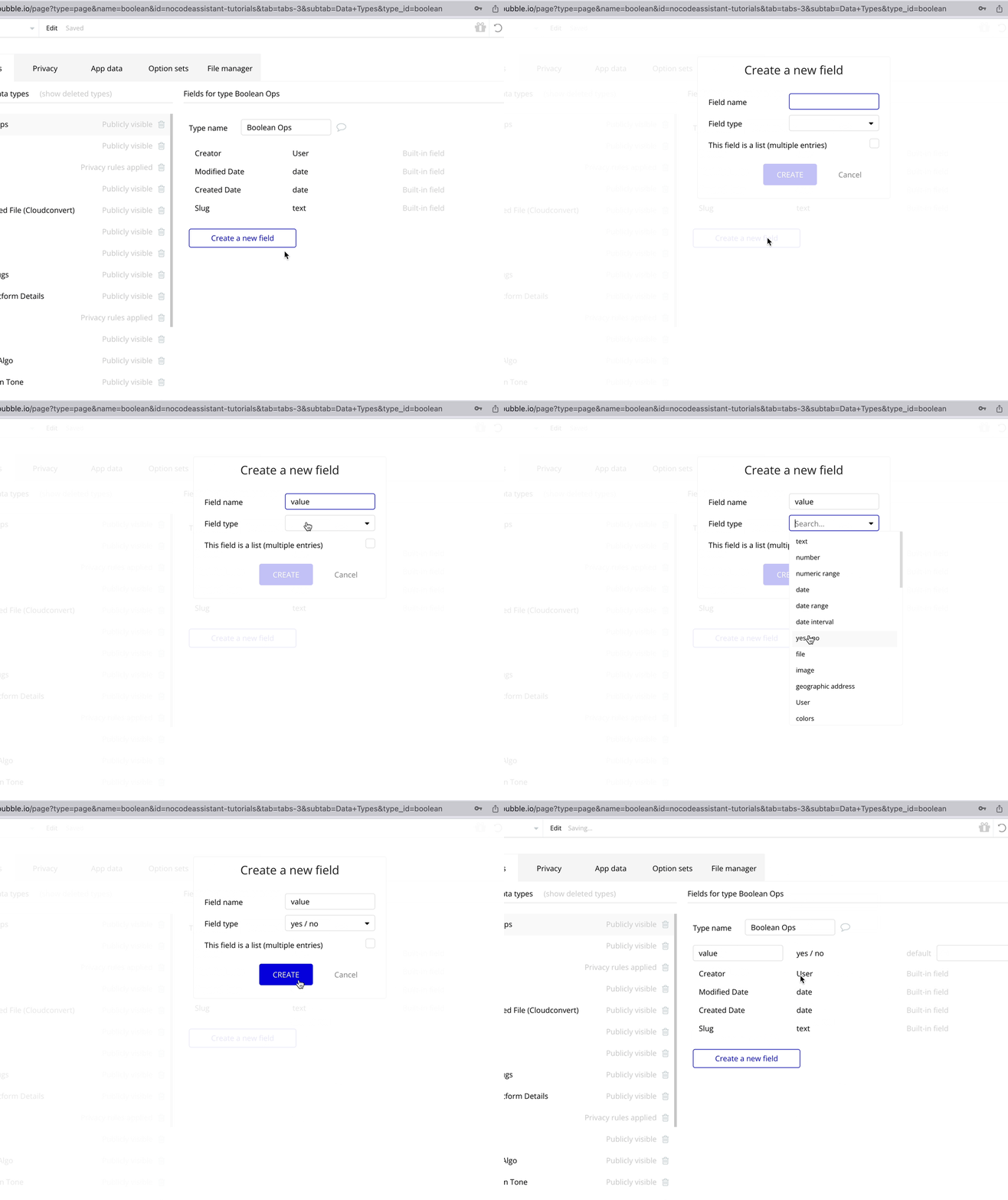
Creating a Boolean field
You can choose to set a default value if you’d like.
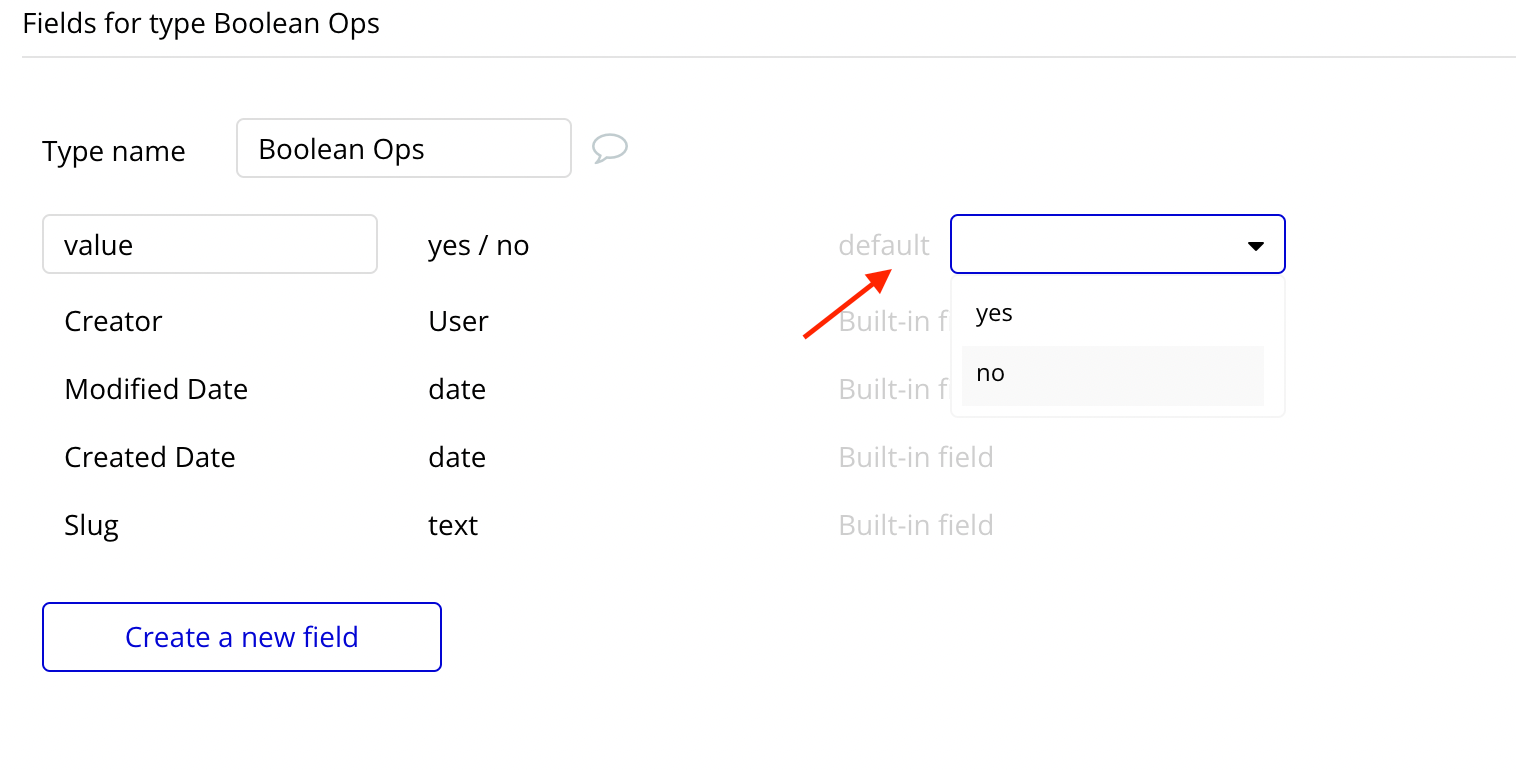
Default value
You can update the Boolean field in various ways. You can
Both methods are similar, so for this tutorial, let’s create the workflows with a toggle input.
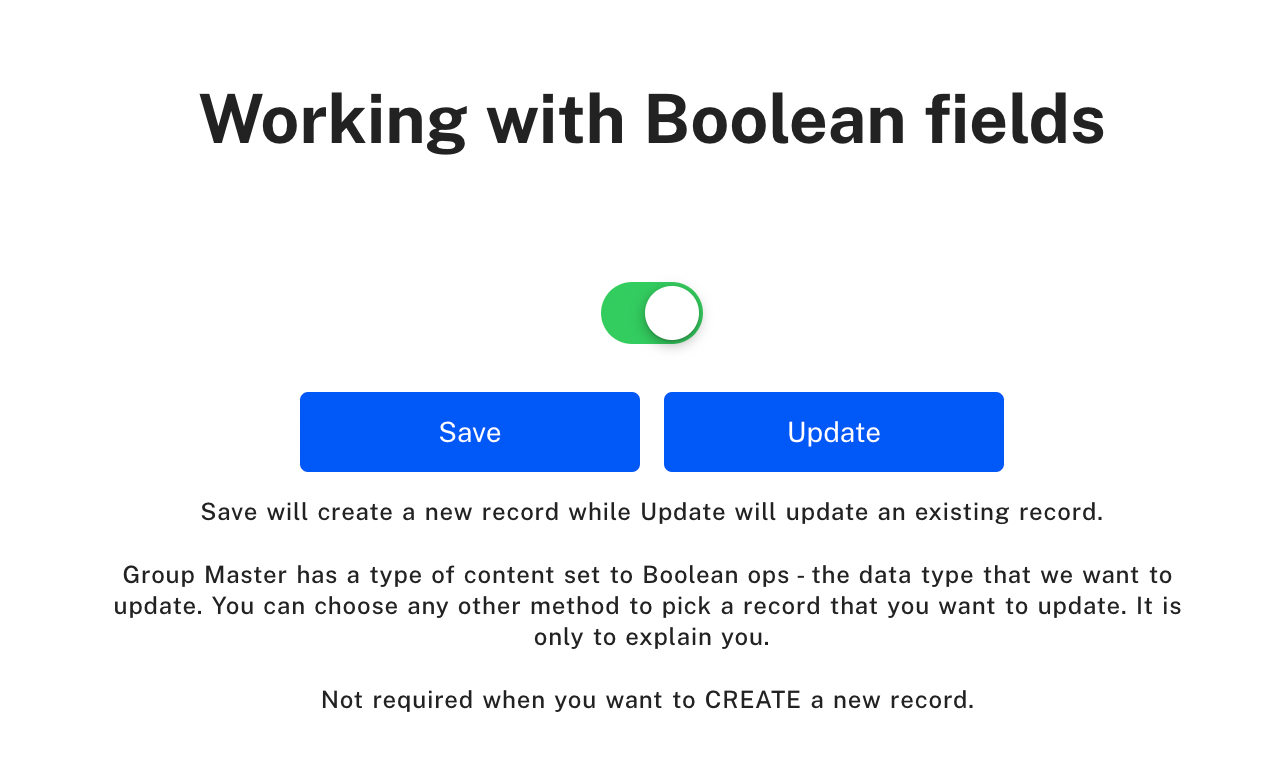
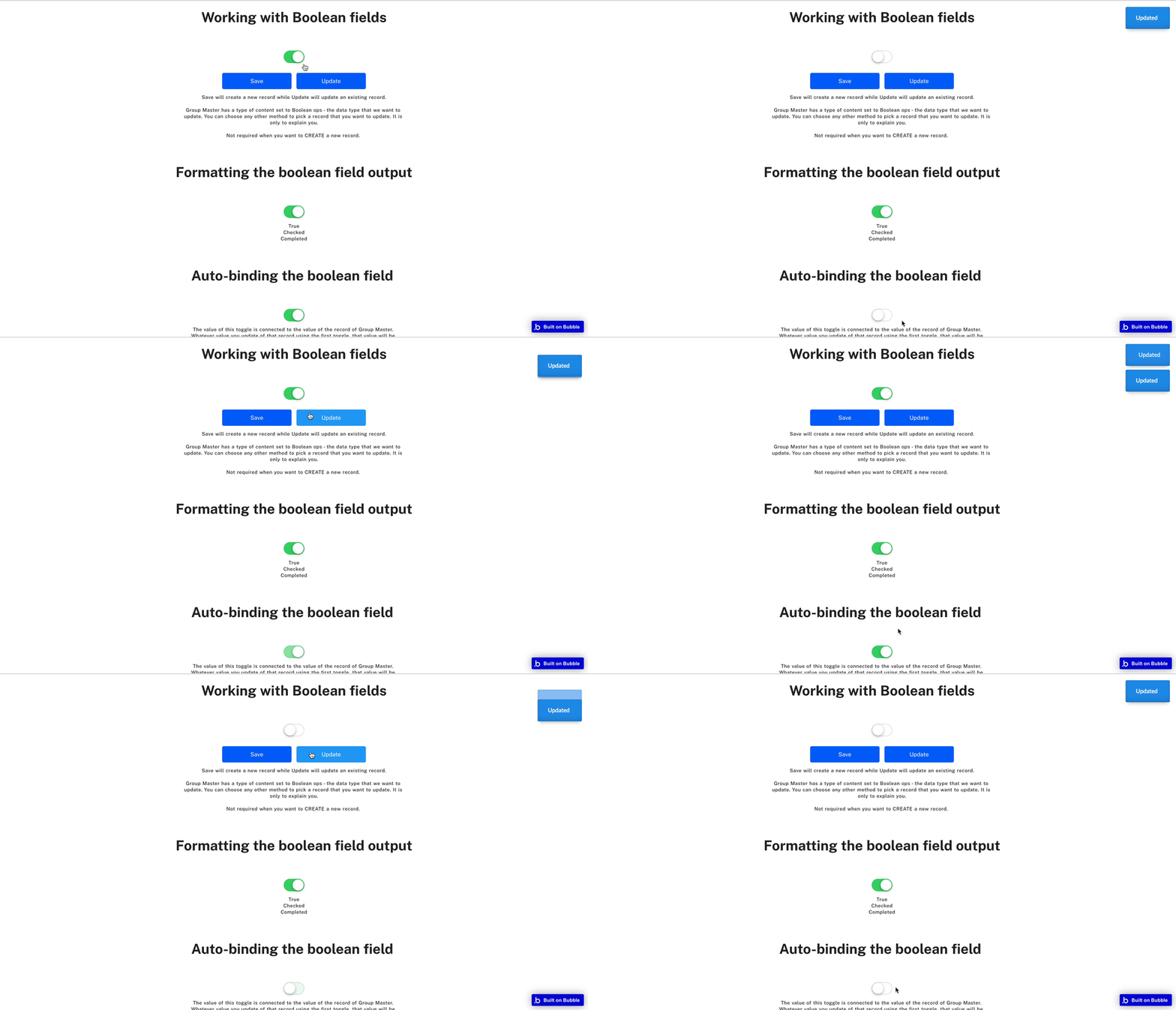
I’ve placed a toggle button, and I want to store the value in the database. As we’ll be creating a new record whenever we press the ‘save’ button, the workflow will create a new record.
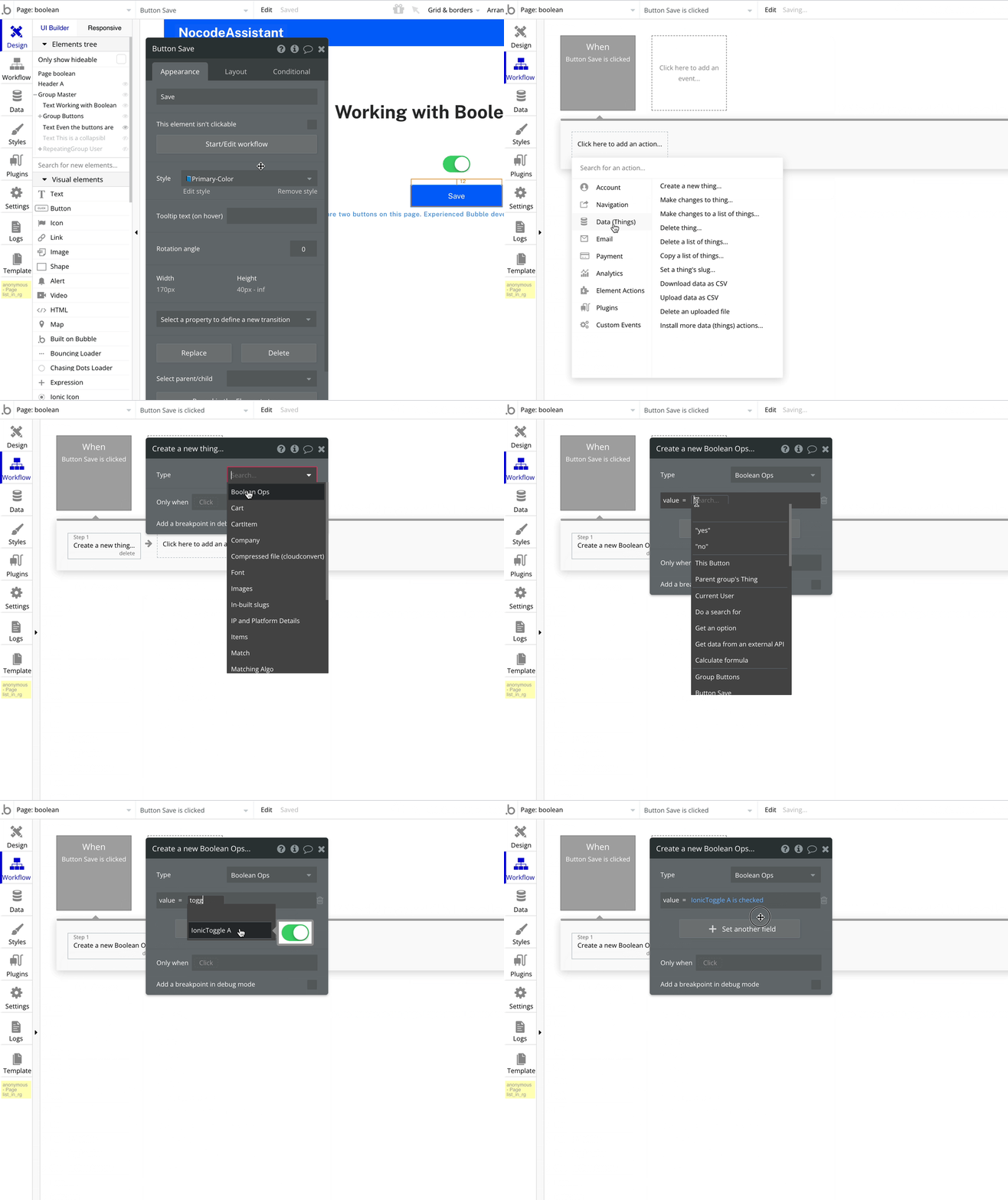
Storing a ‘Toggle input’s value is checked’ is the way to store its value, even though it may initially seem unclear.
Bubble will save the current value of the Toggle value regardless of whether the Toggle is checked or unchecked. It works weirdly, but that is how it operates.
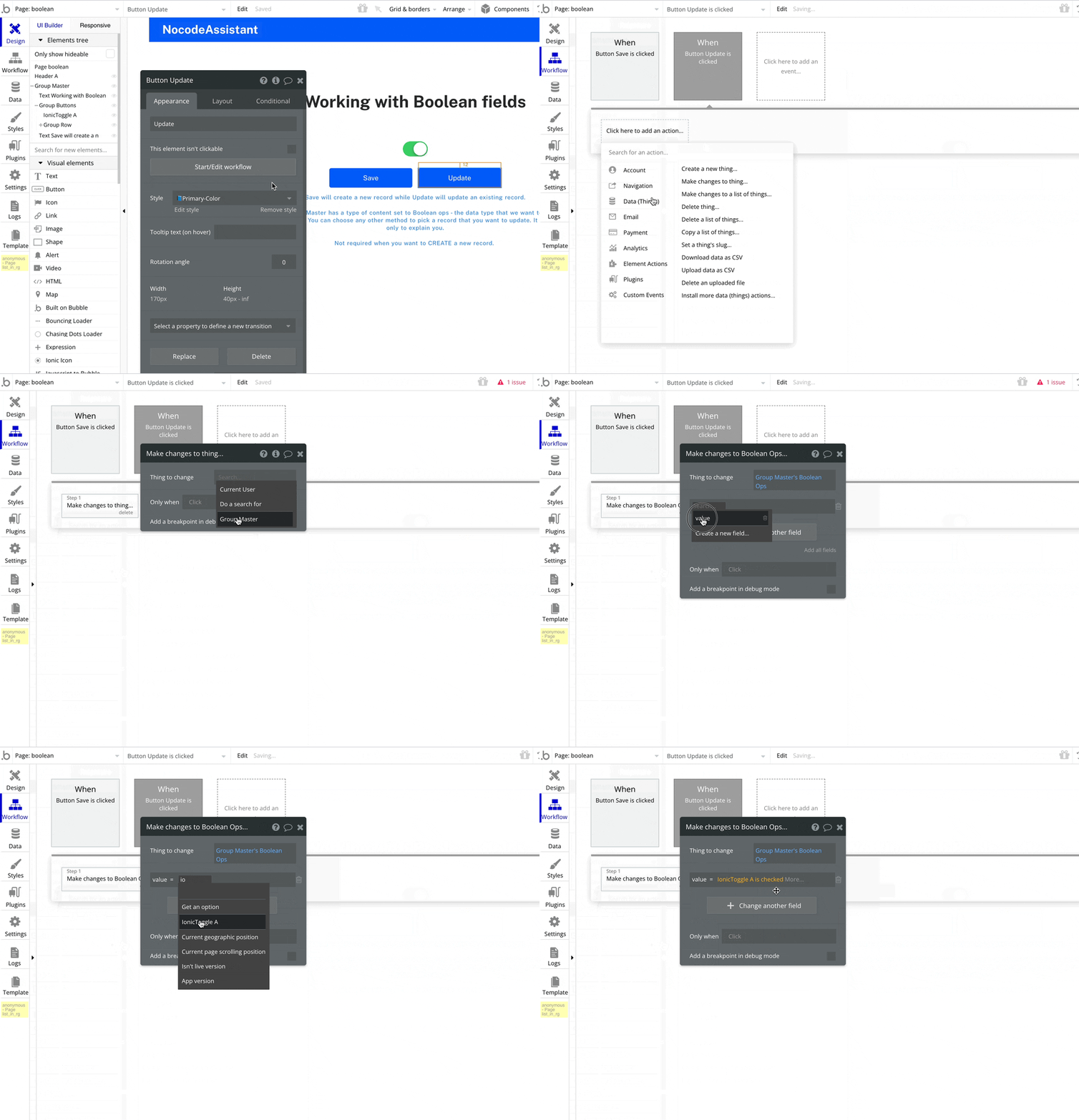
The dynamic expression will remain the same if we want to update an existing Boolean value.
For the sake of this tutorial, I have assigned a type of content to the Group Master and have passed a random record to that group. I will use the record in this group and update its ‘value’ field.
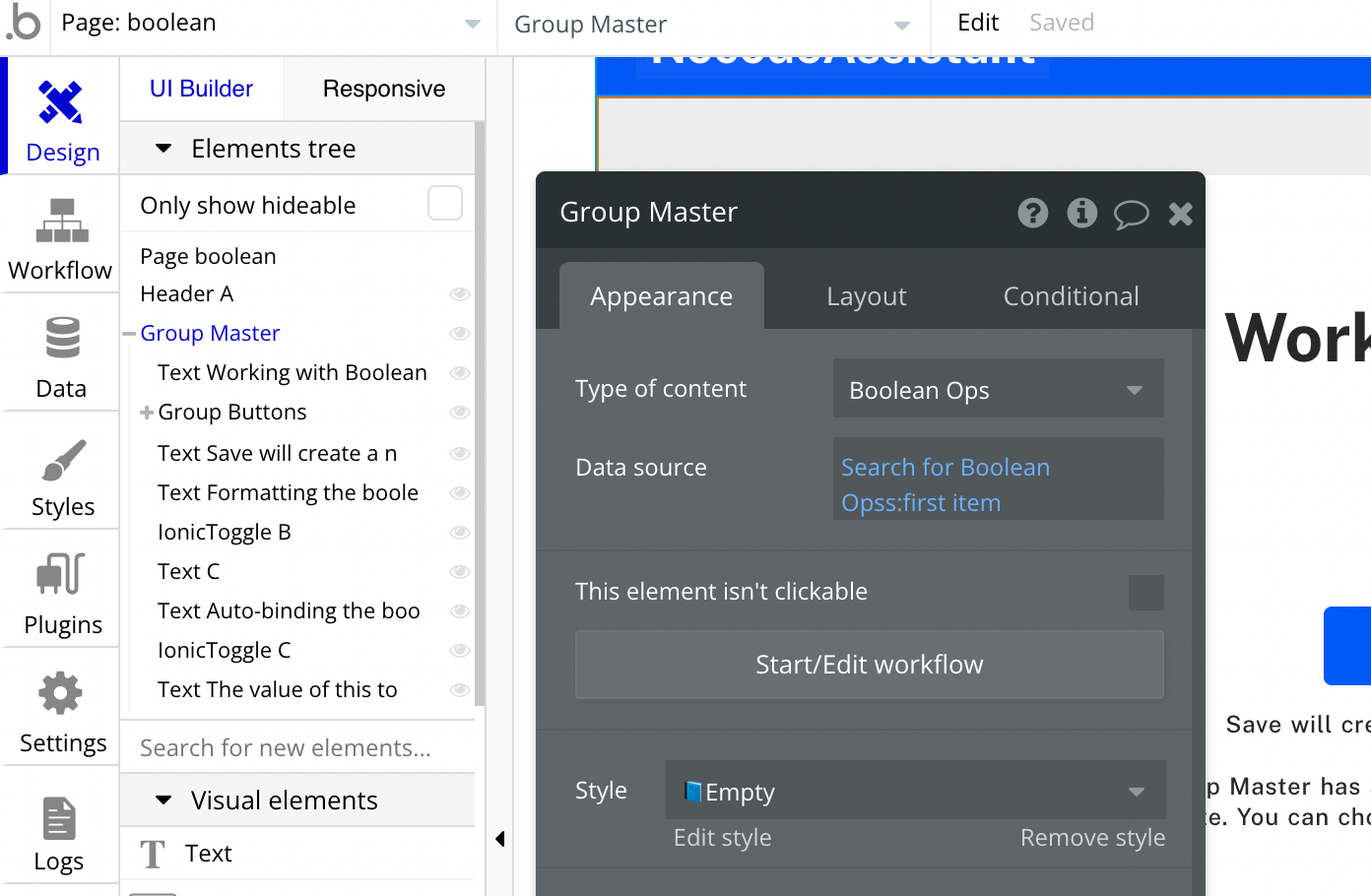
An arbitrary value. You can have different methods to find the record you want to update.
We’ll use a new button to update the value. The same expression, ‘Toggle input’s value is checked’, will be used to overwrite the existing value.
Auto-binding is a feature that lets you modify and update a field in your Bubble database without using a workflow. It allows us to reduce the number of workflows in our app and improve the UX for our users.
To auto-bind the boolean field, there are two steps.
Read the other tutorial to understand auto-binding and create appropriate privacy rules.
Bookmark
Simple guide to learn auto-binding in Bubble
Auto binding is a method of updating the Bubble database without creating or triggering a workflow.
We’ll check the ‘Enable auto-binding’ checkbox. This will present us with the option to auto-bind to the Toggle.
As our boolean field is called ‘value’, we’ll select this field from the dropdown.
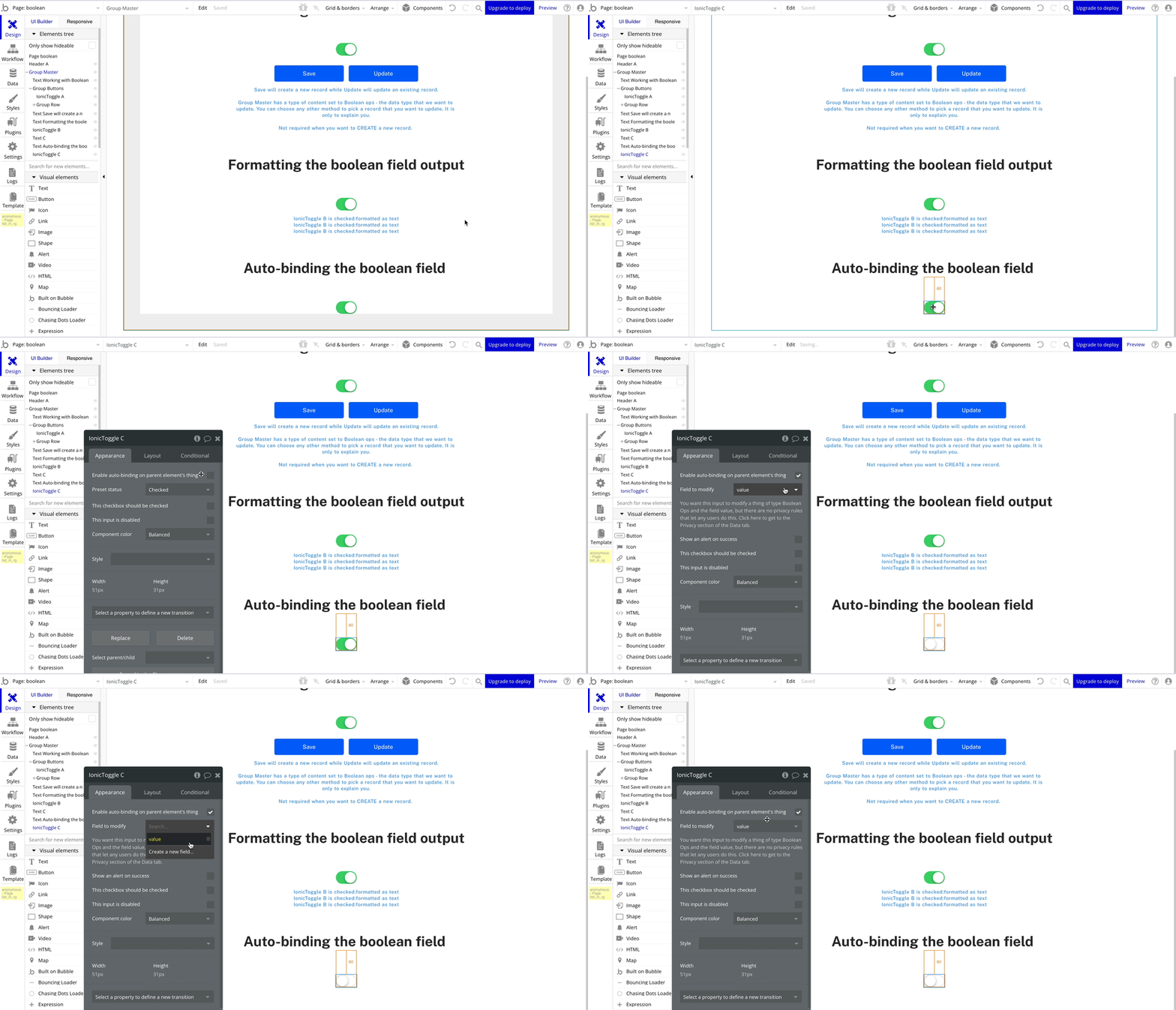
Once we do this, Bubble will prompt us to create privacy rules.
To get around the requirement, we’ll create a basic privacy rule.
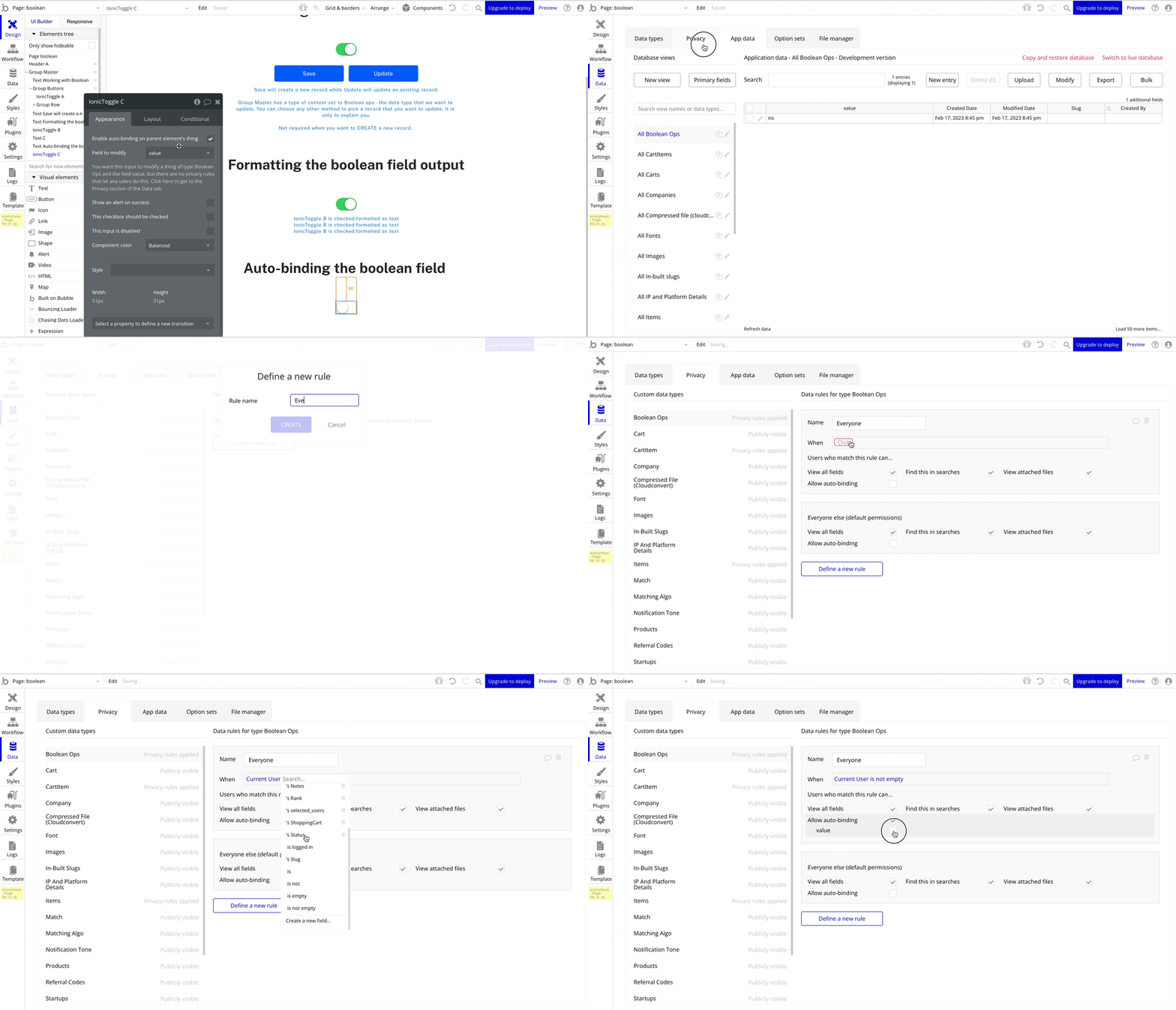
Once the rule is created, we’re all set.
Bubble will automatically fetch the value of this field of the chosen record and set the Toggle as checked if yes and unchecked if no.
And whatever changes we make to the Toggle’s value will be automatically updated in the database without any workflows.
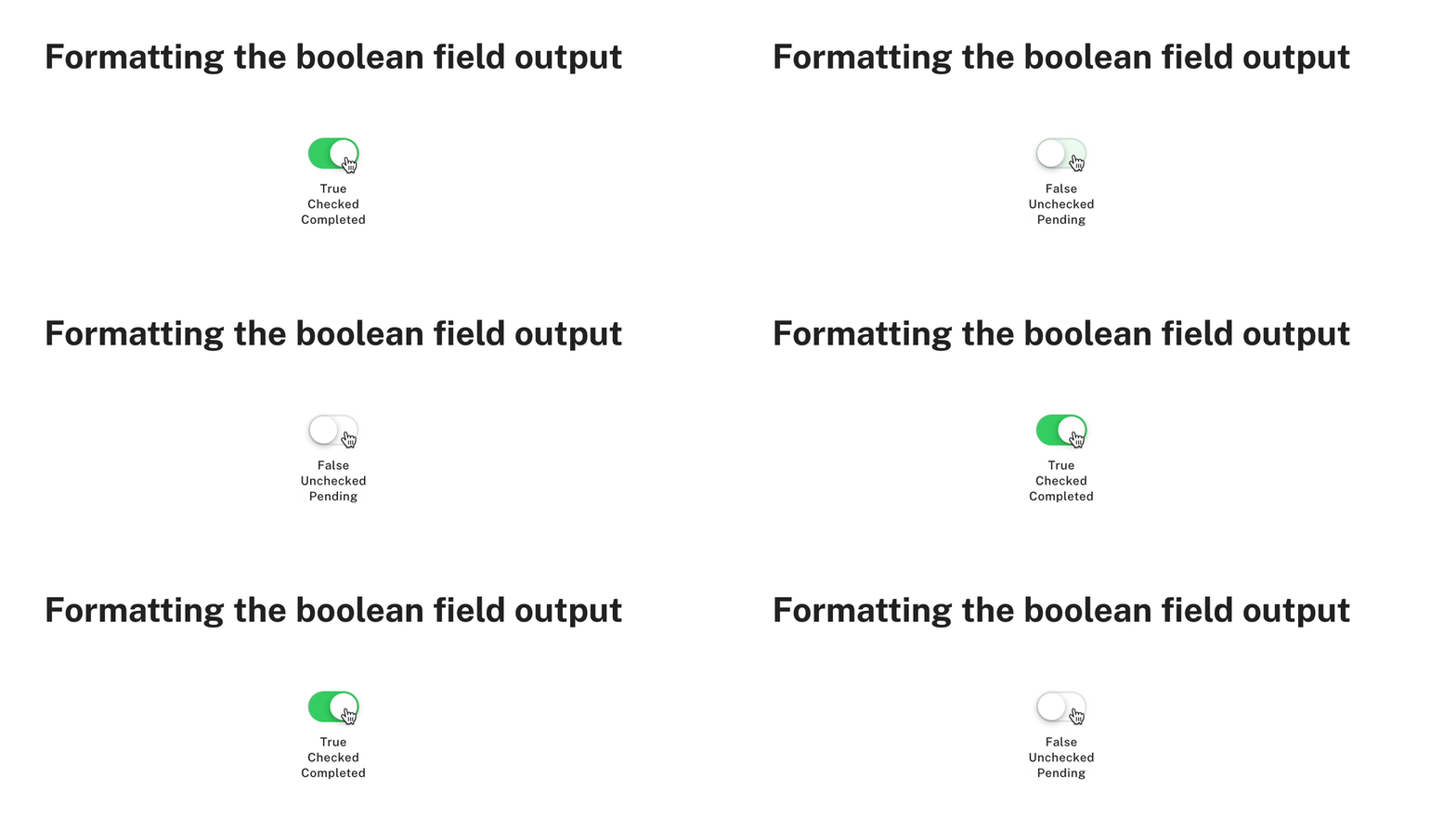
We can format the output of a boolean field in different ways. We can display text based on the value.
For example, if the value of a field stores the verification status as no, we can display the output as “Verification pending” or if it is yes, “Verification completed”.
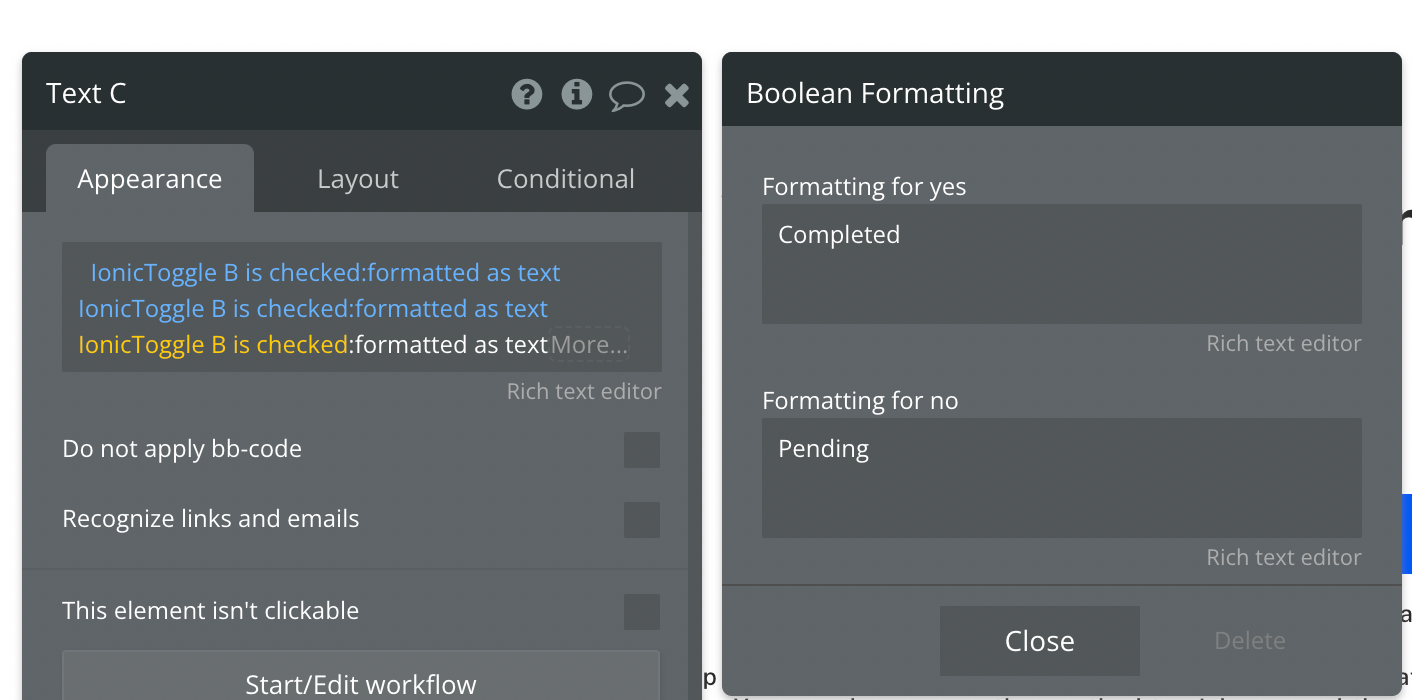
We can use the :formatted as text operator to achieve the result.
Preview - Open live preview Editor - Open Bubble editor
Bookmark
3 proven tips to make your Bubble.io app searches faster today
Learn how to solve the problem of a slow app (without upgrading your server). 1. Use privacy rules 2. Reduce nested searches 3. Avoid advanced filters
Contact us today to explore how Bubble can help your business. We would love to chat with you about how we could work together!
Continue reading
This tutorial covers the steps to connect Airtable and perform operations on your Airtable data with Bubble.
Learn how to solve the problem of a slow app (without upgrading your server). 1. Use privacy rules 2. Reduce nested searches 3. Avoid advanced filters
Database triggers are a way of setting off workflows automatically in the backend when something changes in your database. Learn how to use them in your Bubble app

