Searching databases using URL parameters in Bubble
Himanshu Sharma——3 min read—Updated March 5, 2023
Once you start using URL parameters, you’ll wonder how you can use them to search and display data from your Bubble app database. It’s a pretty powerful feature.
URL parameters are a great way to search and fetch records from your database. URL parameters can function as filters to reduce the number of records retrieved from the database by specifying certain conditions.
This is a Bubble.io tutorial on using URL parameters in a search.
Searching using the unique id of a record
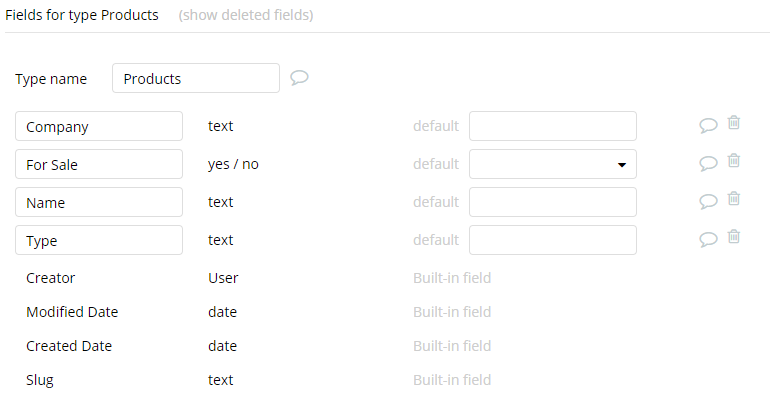
Assume that you have a data type called Product
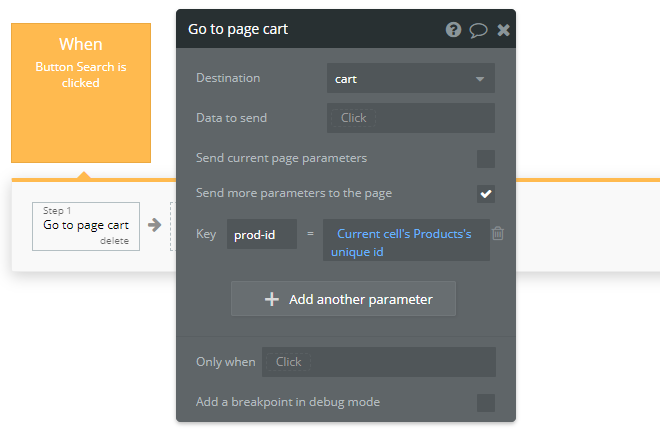
And you’re passing the unique id of a Product in the URL to another page where you want to display the Product details.
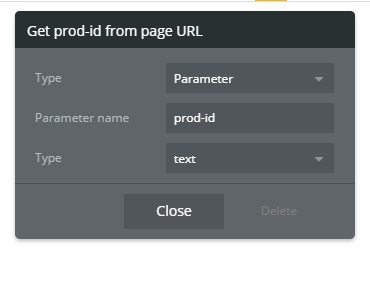
The text after the ? is your URL parameter where prod-id is the key and 1596786382090x752535090689481000 is the unique id of the Product.
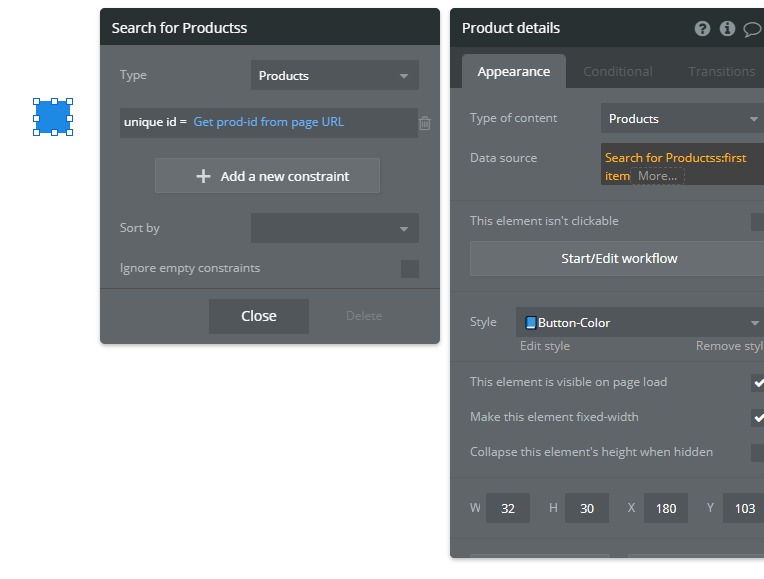
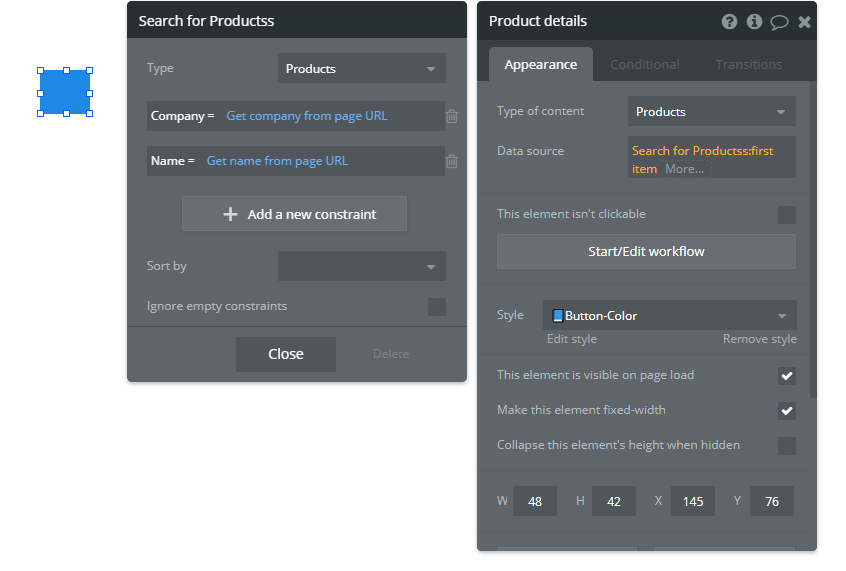
On the next page, create a dummy group of 1x1 and position it at 0x0. We’ll use this group to find the Product record and use this group’s value to reference data where we need it.
The Type of content of this group will match with the Type of content of the data type whose unique id we are sending. Here, it is the Product.
For the data source, we’ll search our database for the entry whose unique id matches the one in the URL. Here, it is the Product.
We need to remember that we are only searching for a single record and not filtering a Repeating group. That’s why we are using a Group to hold the Product information. And because of this, we need to use :first item in the Data source of the Group. This tells Bubble to find and associate the first Product that matches the constraint. There can be only one Product record with the same unique id, so this will always give us the correct Product record.
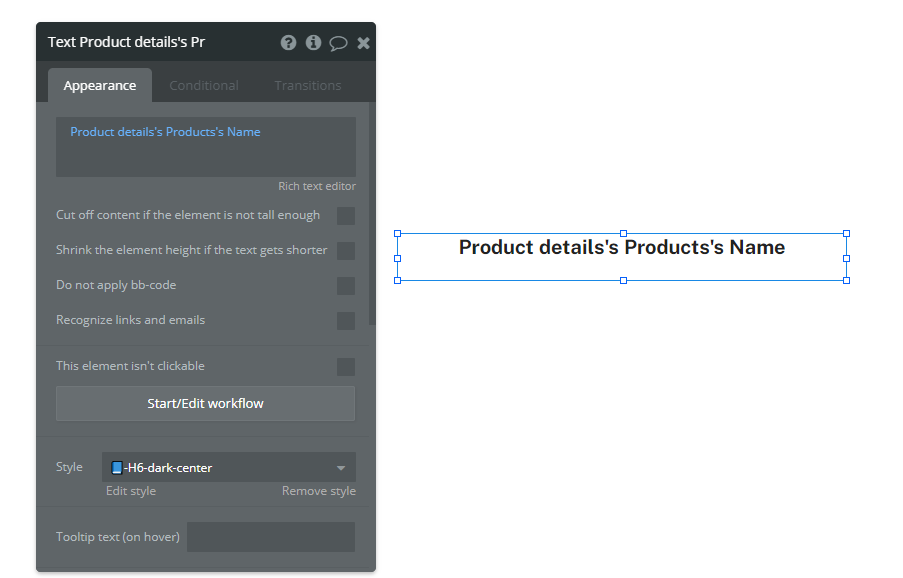
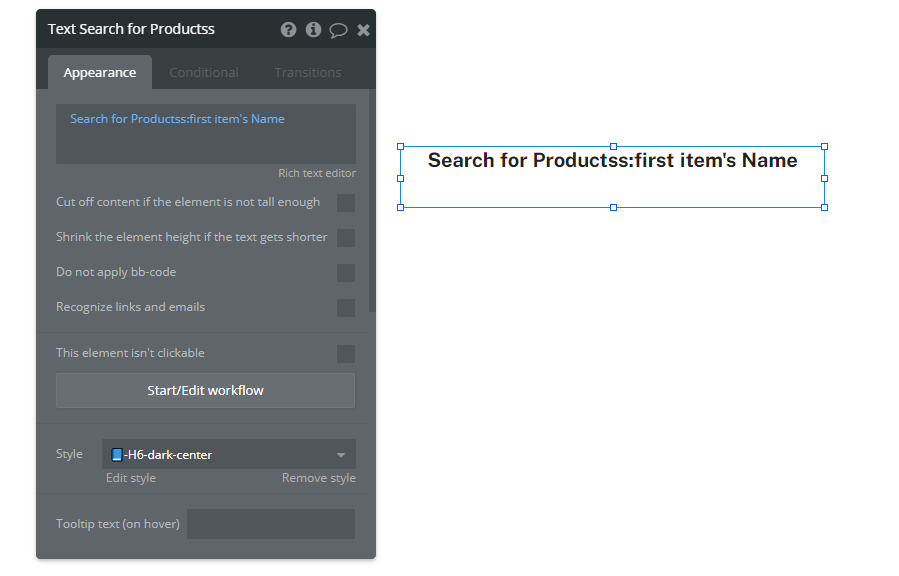
We can now refer to this dummy group where we want to display the Product’s information.
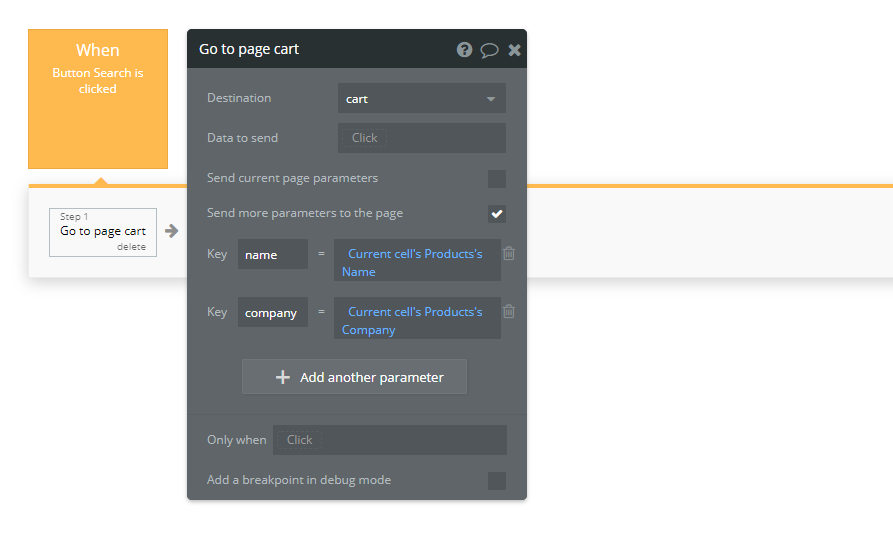
Here, we are passing the two parameters, name and company. The approach to finding the correct Product record will remain the same. The only difference will be in the constraints that we will apply.
Both the approaches are correct and will work in all cases. Yet, I recommend creating a dummy group. This keeps your app organized. And if in future you want to change the data source of a URL parameter, it is simpler to change.
If you need some help with your Bubble app or if you need a team of Bubble developers to build a Bubble app for you, reach out to me at himanshu@nocodeassistant.com. You can also follow me on Twitter.
Learn how to effectively use Boolean fields in Bubble to optimize your database management. Improve your app's efficiency and user experience with the simple but versatile Boolean field.